Connecting to the Sandbox
The sandbox is a Docker container on your host or on a remote server. This page owns remote access: the terminal, VS Code attach, direct SSH, Tailscale, and tunnels. Not every connection method forwards ports. Pick the method that matches what you must reach.
Ways to connect
| Option | Command or action | Port forwarding to your laptop |
|---|---|---|
| A — Terminal | agro shell <name> on the host | None |
| B — VS Code Attach (local host) | Dev Containers → Attach to Running Container → your sandbox | Automatic while attached |
| C — VS Code Remote-SSH + Attach (remote host) | Remote-SSH to the host, then Option B | Automatic while attached |
| D — Direct SSH (opt-in) | ssh -p 2222 sandbox@localhost after you enable SSH | None |
Inside the sandbox, first run agro tool install herdr. Next, run herdr. Run
agents, tests, and development servers in Herdr panes.
Option A — Terminal
agro shell <name>
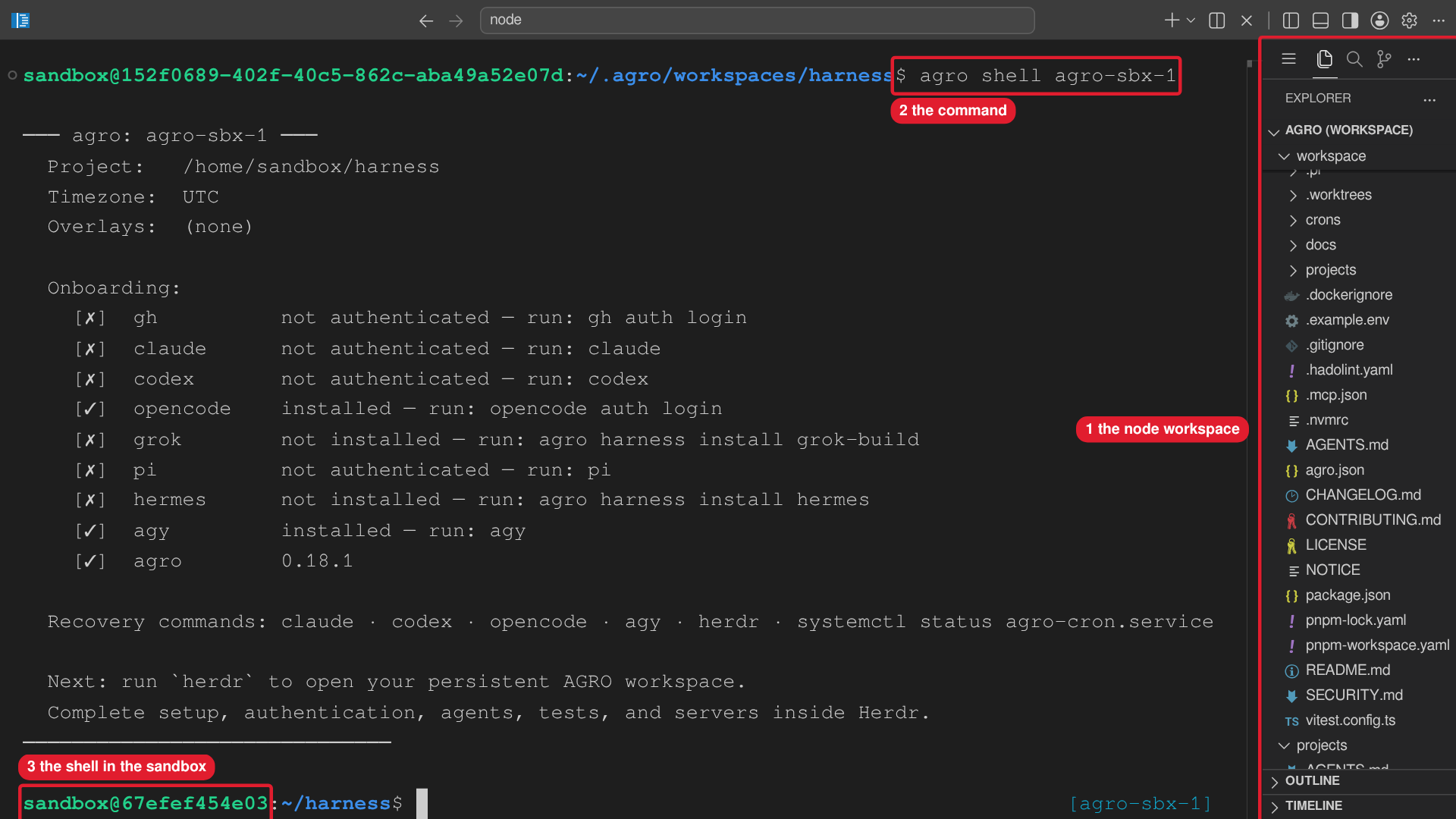 Callouts: 1 is the node workspace in the Explorer. 2 is the command. 3 is the shell in the sandbox.
agro shell attaches as the sandbox user. agro sandbox list prints the
names. If the target container has no sandbox user, run
docker exec -it -u <user> <container> zsh.
Option A forwards no ports. You cannot open localhost:3000 in your laptop
browser through this option alone.
Attach. Do not use "Reopen in Container". Dev Containers: Reopen in Container reads
.devcontainer/devcontainer.json, which names onlydocker-compose.yml. It bypasses.agro/scripts/docker-compose.shand applies no compose overlays: no SSH, no host Docker socket, and nocomposeOverridesentry. Create the sandbox withagro sandbox install docker, then attach. Details: lifecycle commands.
Option B — VS Code Attach to Running Container (local host)
- Install the Dev Containers extension.
- Open the Command Palette (
Ctrl+Shift+P/Cmd+Shift+P). - Run Dev Containers: Attach to Running Container.
- Select your sandbox.
agro sandbox listprints the names.
VS Code forwards container ports to localhost on your laptop while the window
stays attached. The Ports panel lists each forward. After you close or
detach the window, the forwards stop. Processes in the sandbox keep running.
Option C — VS Code Remote-SSH + Attach (remote host)
- Connect to the server with Remote-SSH in VS Code.
- From that window, follow Option B.
VS Code tunnels the container ports through the SSH connection to your laptop.
You need no manual ssh -L.
Option D — Direct SSH (opt-in)
The base container runs no SSH daemon. Enable SSH, then connect from the host:
ssh -p 2222 sandbox@localhost
SSH uses public-key auth by default and binds only to host loopback. Setup, key configuration, the port-collision preflight, and multi-tenant nginx routing are in SSH.
Default exposure
The base sandbox publishes no application ports to the host. Your laptop reaches a container port only through one of these:
- VS Code auto-forwarding (Options B and C);
- a manual
ssh -Ltunnel to the host; - a compose overlay that you add;
- Tailscale Serve inside the sandbox;
- a public tunnel such as
cloudflared.
Opt-in exposure
Compose overlay
Write an overlay that publishes the port, then add its absolute path to
composeOverrides in the sandbox agro.json:
# /srv/agro/docker-compose.expose.yml
services:
  sandbox:
    ports:
      - "0.0.0.0:3000:3000"
agro config set composeOverrides /srv/agro/docker-compose.expose.yml --sandbox <name>
agro stop <name> && agro sandbox install docker --name <name>
A 0.0.0.0 bind exposes the port on every host interface, including a public
one. Use 127.0.0.1 when only the host must reach it. Field reference:
Configuration → Compose overlays.
Public tunnel
For public access, use cloudflared (see the /cloudflared skill), ngrok, or
an nginx or Caddy reverse proxy. Start the tunnel inside the sandbox in a named
tmux session. The URL is the only credential. Anyone who has the URL reaches the
port. For private access from your own devices, use
Tailscale instead.
Mobile access over Tailscale
Tailscale is the supported path to reach T3 Code from a phone, or from any device when the sandbox runs on a remote host. Access stays private to your tailnet.
tailscaled runs inside the sandbox in userspace-networking mode, as the
sandbox user. The container is the tailnet node:
- The sandbox needs no
NET_ADMIN, no/dev/net/tun, and no compose change. - The host publishes no port. T3 Code listens on container loopback
127.0.0.1:3773. Tailscale Serve proxies tailnet HTTPS to that address. - Node state lives in
/home/sandbox/.tailscale, inside the home mount. The node keeps its identity across a container recreate and a move to another VM. - Nothing installs Tailscale at boot, and nothing joins a tailnet for you.
Prerequisites
- The sandbox runs (
agro ps <name>). - Sandbox Node satisfies the T3 Code range
^22.16 || ^23.11 || >=24.10(node -v). - A provider is authenticated in the sandbox.
- You control a tailnet.
- The phone has the Tailscale app, signed in to the same tailnet, and the T3 Code app.
Steps
-
Install Tailscale in the sandbox. The AGRO tool catalog pins the version and the checksums. The binary lands in
~/.local/bin.agro tool install tailscaleagro tool status tailscale -
Start the daemon in a named tmux session, so it survives a disconnect:
tmux new-session -d -s agent-tailscaled \'tailscaled --tun=userspace-networking --statedir=$HOME/.tailscale' -
Join the tailnet.
tailscale upprints a login URL. Open the URL and approve the node. Then note the MagicDNS name.tailscale uptailscale statusNever commit a reusable Tailscale auth key. Never print one into a log or a tracked file.
-
Start T3 Code in Tailscale mode:
/t3 start --tailscaleThe skill runs
npx --yes t3 serve --tailscale-servein theagent-t3codetmux session. T3 Code configures Serve on HTTPS 443. The server prints alocalhostpairing URL, which the phone cannot use. The skill then runsnpx --yes t3 pair --tailscaleone time. That command prints a QR code and thets.netpairing URL. Add--tailscale-port 8443when port 443 is in use on the node. -
Pair the phone. Scan the QR code, or paste the
https://<machine>.<tailnet>.ts.net/...URL into the T3 Code app.
The pairing token is single-use. The paired session persists. To add another
device, do not restart the server. Run /t3 pair --tailscale and pair with the
new URL.
Run the next command in another sandbox terminal to print a fresh QR code:
npx --yes t3 pair --tailscale --label <device> --ttl 15m
Lifecycle
| tmux session | Process |
|---|---|
agent-tailscaled | the Tailscale daemon |
agent-t3code | npx t3 serve --tailscale-serve |
Both sessions survive a disconnect. /t3 status and /t3 logs read the T3
session without an attach. After a container recreate, the daemon is not
running: repeat steps 2 and 4. Run tailscale up again only after a logout.
Revoke access
T3 pairing and tailnet access are separate. Revoke both:
t3 auth                          # inspect and revoke T3 sessions and pairing credentials
tailscale serve --https=443 off  # remove the Serve mapping; it persists until you do
tailscale logout                 # sign the sandbox node out of the tailnet
Then delete the device in the Tailscale admin console.
Rename the node
A rename of the Tailscale node does not move the Serve mapping. The mapping stays on the old MagicDNS name. Run these commands in the sandbox to remove the old mapping and start the server on the new name:
tailscale serve reset
/t3 stop
/t3 start --tailscale
Troubleshooting
/t3 doctor runs the Tailscale, Node, and tooling checks and prints one line per
failure.
| Symptom | Cause | Fix |
|---|---|---|
/t3 start --tailscale reports Tailscale missing | binary not installed | agro tool install tailscale |
tailscale status cannot reach the daemon | tailscaled not running | repeat step 2; check tmux ls for agent-tailscaled |
Backend state is not Running | node never joined, or logged out | tailscale up, then complete the browser login |
No ts.net URL in the T3 output | Serve not configured | confirm tailscale status shows Running, then /t3 start --tailscale |
| Serve answers after T3 Code stops | the Serve mapping persists | tailscale serve --https=443 off |
| T3 Code fails with an engine error | Node outside ^22.16 || ^23.11 || >=24.10 | check node -v; rebuild the sandbox on Node 24.10 or later |
| Phone cannot reach the URL | phone not on the tailnet | sign the phone in to the same tailnet; confirm it in tailscale status |
| Phone on the tailnet, URL times out | Serve on another port, or server stopped | tailscale serve status; /t3 status |
https://app.t3.codes cannot connect | mixed content: an HTTPS page blocks a plain-HTTP endpoint | use --tailscale-serve (HTTPS) or the native app |
AGRO never enables Tailscale Funnel and ships no Funnel command. For a public
preview, use /cloudflared 3773 instead.
tmux session names
Herdr holds interactive work. Headless services run in named tmux sessions with
the pattern <category>-<identifier>:
| Category | Examples | Purpose |
|---|---|---|
client- | client-slack-pi, client-slack-hermes | Messaging gateways (Slack) |
agent- | agent-t3code, agent-tailscaled | Headless agent services and daemons |
app- | app-hermes-dashboard | Headless application servers |
Full convention:
.agro/skills/t3/references/sandbox-processes.md.
Reach T3 Code
T3 Code listens on container port 3773. With VS Code attached, open
http://localhost:3773. Over Tailscale Serve, open
https://<machine>.<tailnet>.ts.net/. Start T3 Code with /t3 start. Next,
open the pairing URL from /t3 url. More: T3 Code.