From Fresh Sandbox to First PR: An AGRO Demo Guide

Updated on 2026-10-08. Open Harness is now AGRO. This post uses the current names and commands.
To learn AGRO, watch a clean machine become an agent-ready development environment. The demo installs the sandbox, attaches an editor, and checks the agents. Then the demo connects GitHub, and an agent creates its first issue and pull request.
The full Loom walkthrough shows the full demo. This post turns the demo into a written runbook. The runbook also states the corrections: safe defaults, when not to mount Docker, the contents of .agro/, and how worktrees isolate agent work. The video and the screenshots record the July 2026 demo. The installer and the wizard screens changed after the demo.
What the demo proves
AGRO is a portable home for coding agents: one repository, one Docker sandbox, and one shared control plane for each agent you run. The host stays simple. The host needs only Docker, Git, and Node.js ≥ 20. Node, pnpm, and gh live inside the container. agro harness install <id> installs each agent CLI that you use into the container.
The demo ends in this state:
- The sandbox runs.
- VS Code attaches to the sandbox as a normal development environment.
- Each agent CLI sees the same repository and the same
.agro/primitives. - The GitHub CLI has a login inside the sandbox.
- Agent work lands in isolated worktrees and becomes a normal issue and pull request.
To watch the video next to this guide, open the Loom: AGRO demo.
1. Install the sandbox
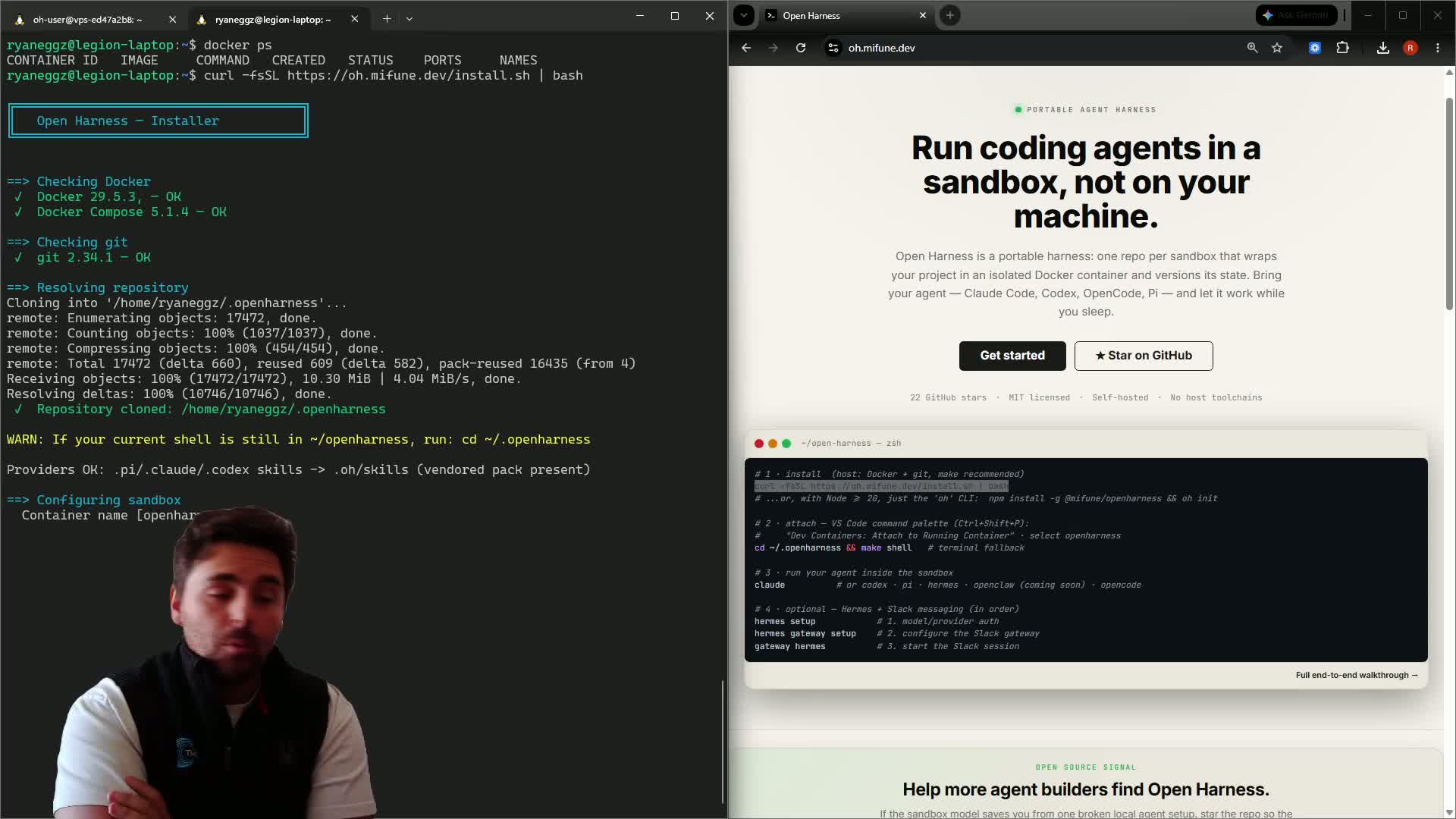
The demo starts from the installer. Today, you install the agro CLI first. Then one command creates the sandbox.
Run these commands on the host:
npm install -g @mifune/agro
agro sandbox install docker
The host needs three dependencies: Docker with the Compose plugin, Git, and Node.js ≥ 20. Without Node, use the bootstrap script instead of npm. The script installs agro to ~/.local/bin/agro and offers to install Node:
curl -fsSL https://github.com/mifunedev/agro/releases/latest/download/install.sh | bash
agro sandbox install docker runs from any directory and needs no checkout. The wizard asks for these values:
- the sandbox name
- the timezone
- your git identity
- SSH
- the host Docker socket
- the host path for
/home/sandbox
The wizard writes the answers to a registry entry at ~/.agro/sandboxes/<name>/agro.json. Then the command starts the container from the published image. --yes keeps every default.
To read the script before it runs, download the script first:
curl -fsSL -o install.sh https://github.com/mifunedev/agro/releases/latest/download/install.sh
# Read install.sh, then:
bash install.sh
To keep your own project in the sandbox, use the checkout path. Run these commands on the host, in your project directory:
cd <your-project>
agro vendor
agro sandbox install docker --checkout "$PWD" --name <your-project>
agro vendor writes the .agro/ control plane into the checkout. The CLI then binds the checkout at /home/sandbox/harness. See Installation and the Quickstart for each option.
2. Choose safe defaults
During setup, name the sandbox and answer the access prompts. The demo typed a sandbox name. Today, the default name is agro-sbx-<n>, for example agro-sbx-1. This post uses agro-sbx-1.
The wizard does not ask for agent CLIs, because the image contains none. Nothing installs at boot. Inside the sandbox, run agro tool install herdr for the terminal workspace. Then run agro harness install <id> for each agent that you use. Run agro harness list for each harness id. Install only what you need. For example, agro tool install agent-browser adds a headless Chromium for screenshots and previews.
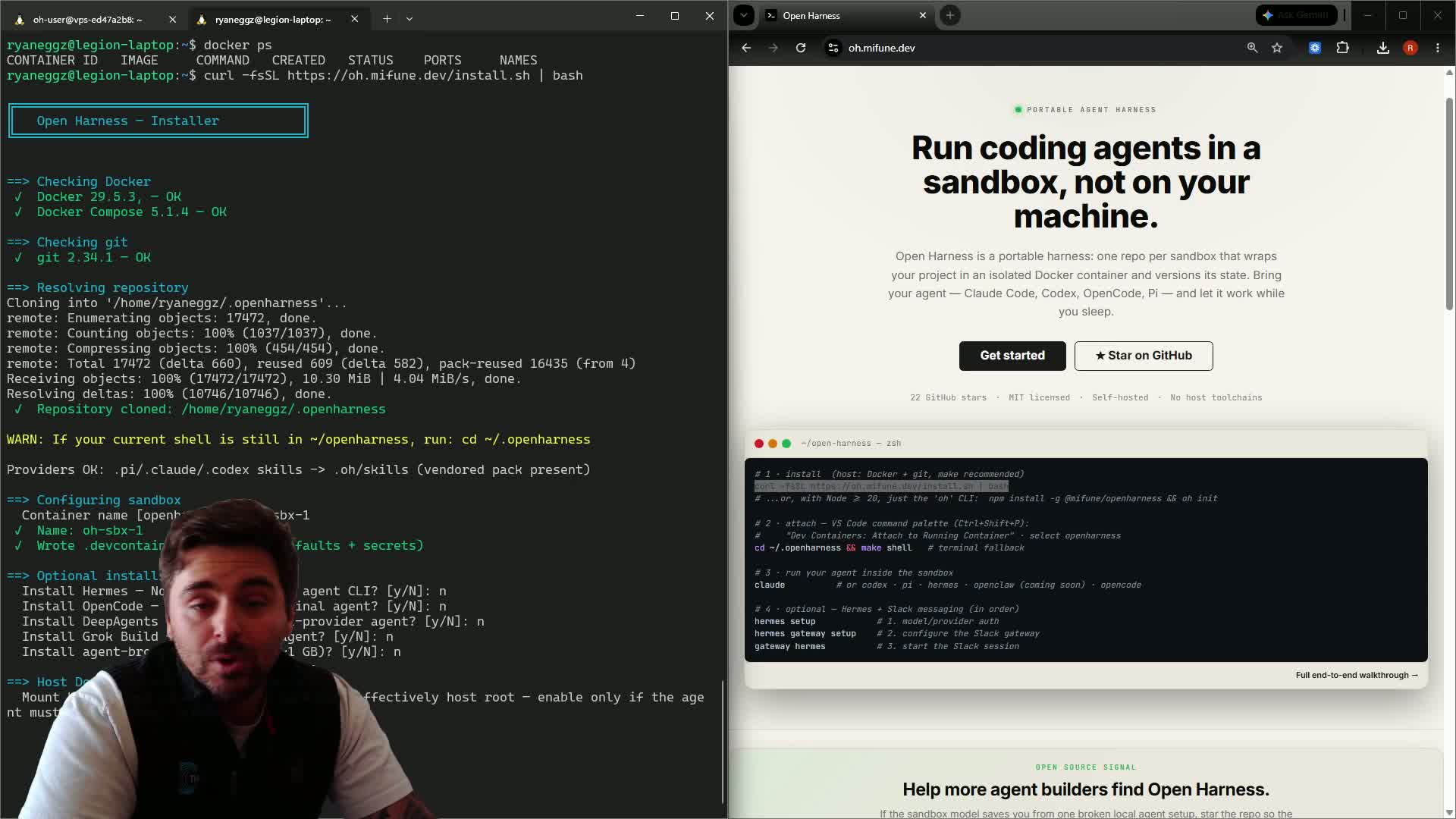
The most important prompt is the host Docker socket. A mount of /var/run/docker.sock lets the sandbox manage the host containers and the sibling containers. That access equals control of the host. The safe default is No. Enable the socket only on a host that you trust, and only when the agent needs Docker control. The setting is access.dockerSocket in agro.json.
3. Let the start finish, then enter the sandbox
An image-mode sandbox pulls the published image. A checkout with a .devcontainer/Dockerfile builds locally, and a cold build takes about ten minutes. When the start completes, the command prints the next step:
next: agro shell agro-sbx-1
These host commands manage the sandbox next:
agro config set --sandbox agro-sbx-1 <field> <value>changes a setting in~/.agro/sandboxes/agro-sbx-1/agro.json.agro secret set --sandbox agro-sbx-1 <KEY>writes a secret to the sibling.env, at mode0600.agro shell agro-sbx-1enters the sandbox.agro destroy agro-sbx-1removes the sandbox, its volumes, and its registry entry.
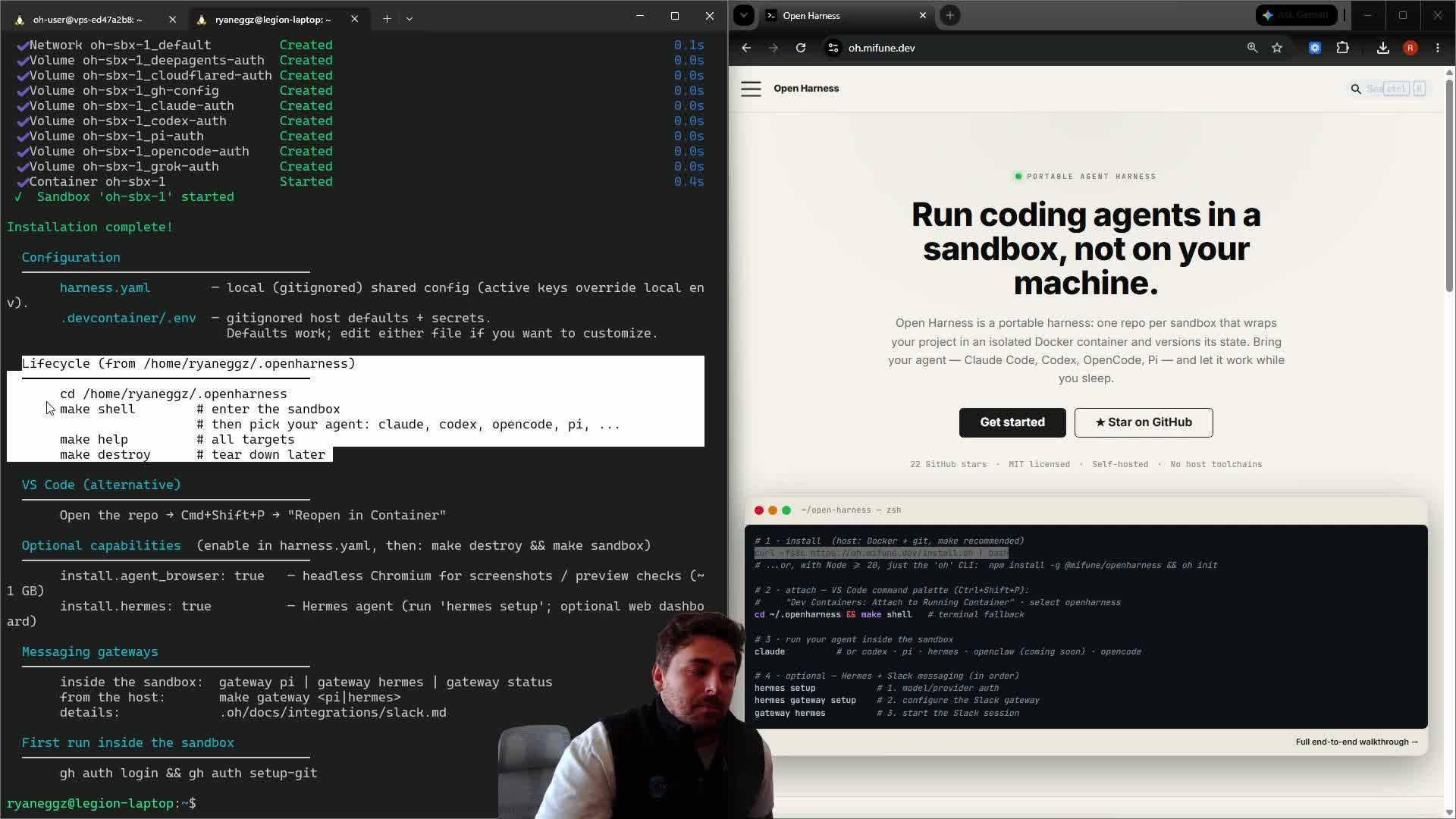
To enter the sandbox, run agro shell from any directory on the host:
agro shell agro-sbx-1 # omit the name when the registry holds one sandbox
The shell opens as the sandbox user in /home/sandbox/harness.
4. Attach with VS Code for the full workstation
A terminal shell is enough for CLI agents. For daily work, VS Code Dev Containers gives a better interface. Attach to the running container and open /home/sandbox/harness. One window then holds the editor, the terminal, the file tree, and the forwarded ports.
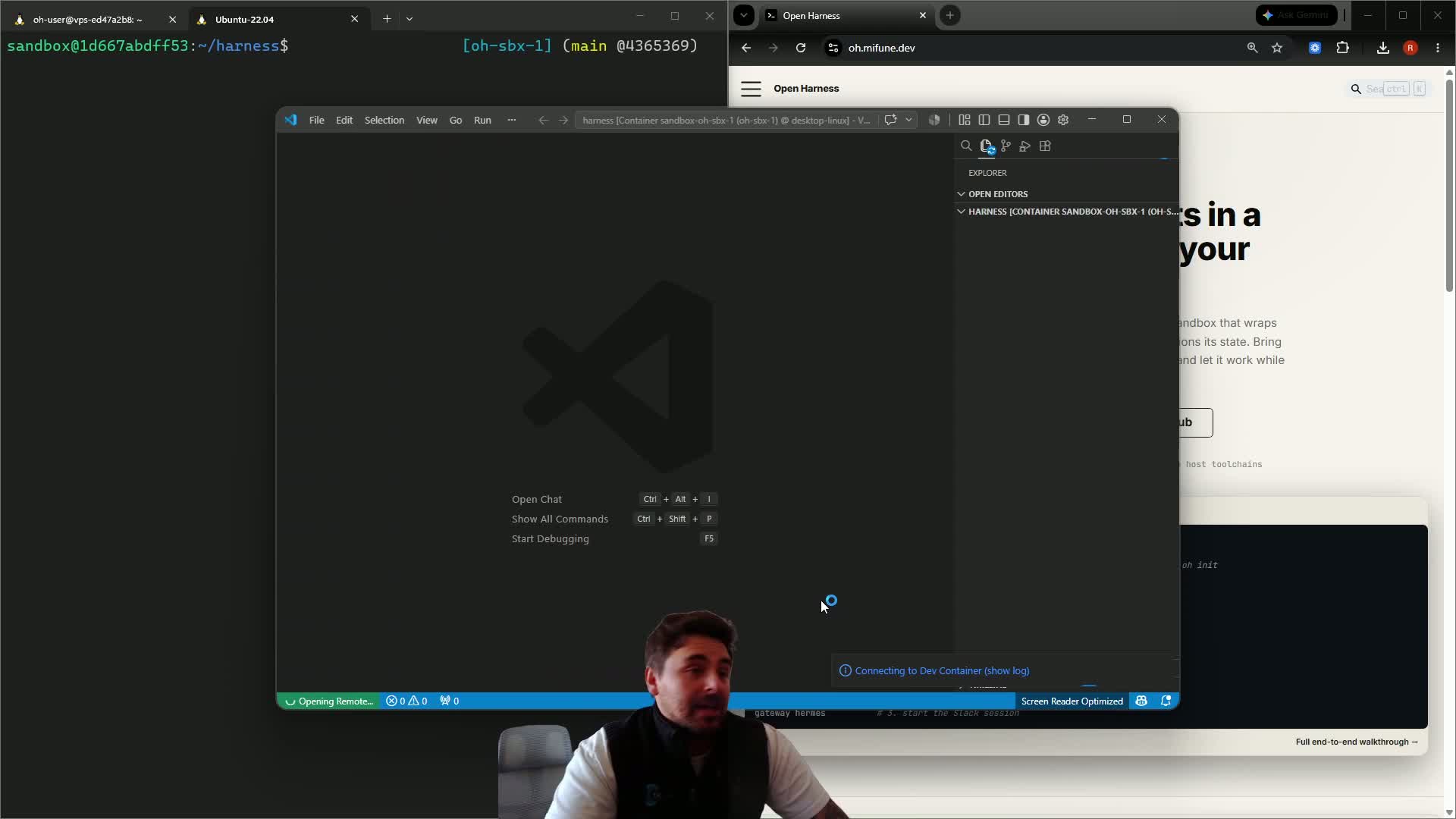
Port forwarding is the key difference. agro shell agro-sbx-1 gives you a terminal, but agro shell forwards no container port to your laptop. VS Code Attach forwards the ports. A browser login flow, a Docusaurus preview, T3 Code, and each app UI in the sandbox need that forward.
The connection options are:
| Path | Use | Port forwarding |
|---|---|---|
agro shell agro-sbx-1 | quick terminal access | no |
| VS Code Dev Containers attach | local workstation | yes |
| VS Code Remote-SSH, then attach | remote VM or server | yes |
See Connecting to the Sandbox for each option.
5. Check that the harnesses share one environment
The video checks Claude Code and Pi in the same sandbox. Each harness has its own interface. Each harness sees the same repository, the same mounted workspace, and the same AGRO control plane.
The control plane is .agro/:
.agro/cli/: theagroCLI package..agro/scripts/and.agro/install/: lifecycle scripts, runtime helpers, and image installation inputs..agro/skills/,.agro/hooks/, and.agro/skills.lock: shared procedures, hooks, and pack metadata..agro/tasks/: task plans (prd.md) and story state (prd.json)..agro/logs/and.agro/memories/: local logs and operator context..agro/manifest.json: the declared control-plane payload.
Provider directories reach the shared skills through links. For example, .claude/skills links to ../.agro/skills. Use lowercase .agro/. Isolated worktrees are not under .agro/. Worktrees live at .worktrees/ at the repository root, as the next section shows. See .agro/ directory layout.
For a smoke test, ask each harness to run a small health check or to read the repository. When Claude Code and Pi both see the same .agro/ tree and the same files, the shared environment works.
6. Connect GitHub inside the sandbox
GitHub login belongs inside the sandbox, because the agents run git, gh, and the pull-request commands there.
Run these commands in a Herdr pane inside the sandbox:
gh auth login
gh auth setup-git
gh auth status
For SSH, choose SSH during gh auth login, and let gh generate and upload a key. Then paste a GitHub token when gh prompts for one. The usual scopes are repo, read:org, and admin:public_key. Add workflow when the agent creates repositories or changes workflow files.
Two guardrails apply:
- AGRO creates no token for you. You create or supply the token.
ghstores the token in~/.config/ghin the home mount. - Do not paste a token into a prompt, a screenshot, a blog post, or a memory file. Use
gh auth login, an environment variable, oragro secret set.
See GitHub for the full flow. For a walkthrough of each login, see Your first sandbox: signing in gh, Claude, Pi, and Hermes.
7. Use worktrees for isolated agent work
After the GitHub login, isolate each task. Agent tasks must not all change the same checkout.
AGRO uses .worktrees/ at the repository root for isolated branch work. Independent project clones live next to it under projects/:
.worktrees/
  feat/my-task/                  # branch worktree of this repository
projects/
  <owner>/<repo>/                # independent project clones
This layout gives you two modes:
- Branch worktrees for changes to this repository. Each task gets its own branch checkout.
- Project clones for separate repositories that an agent creates or changes from inside the sandbox.
In the demo, an agent creates a new public repository and adds the first files from inside the sandbox. That run proves the chain: install, editor attach, GitHub login, and an agent-owned project. Each step stays inside the isolated environment.
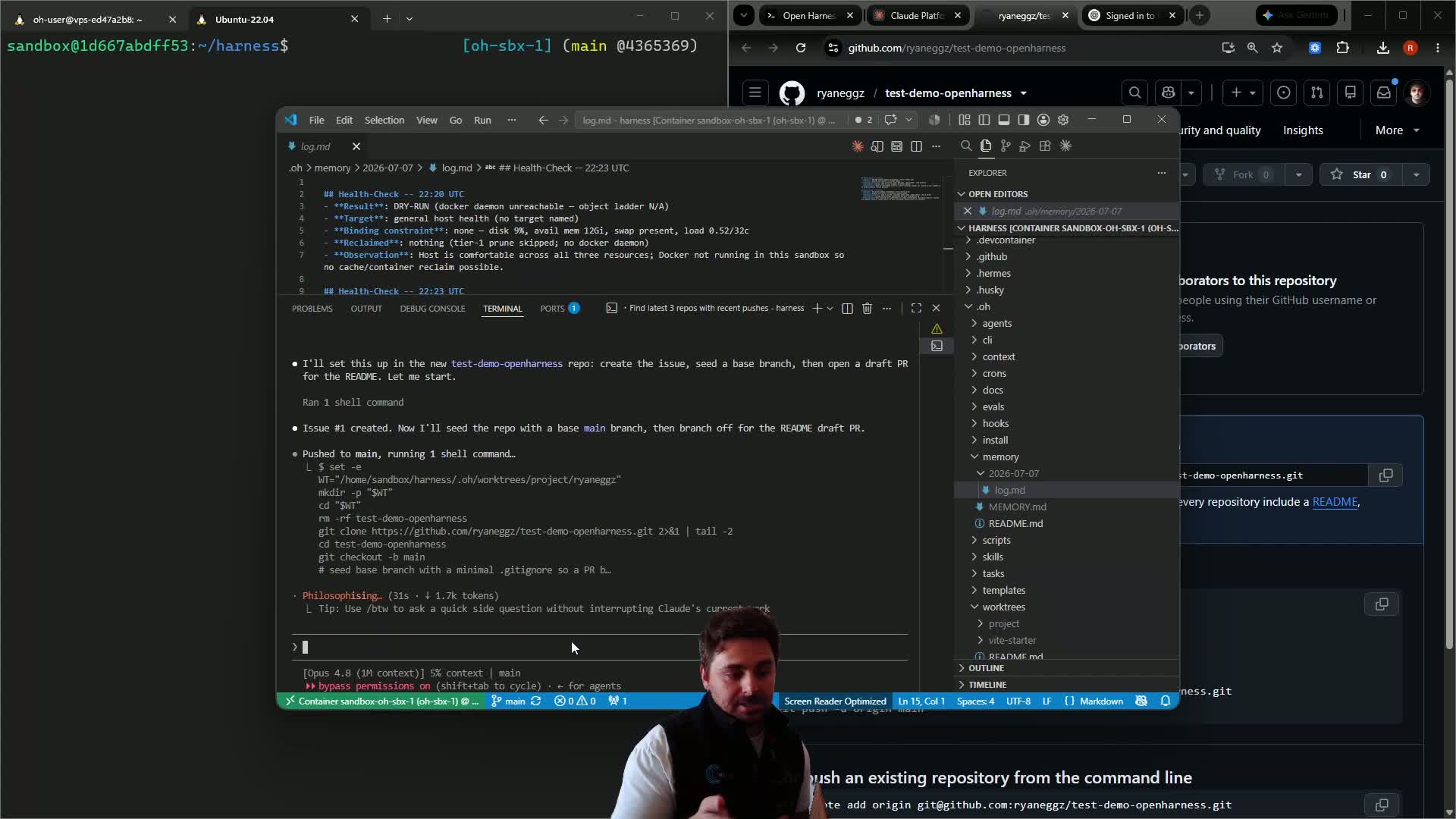
The Loom screenshots show a throwaway public demo repository. Its name is an example, not a naming rule.
8. Checks before you finish
A good setup run passes these checks:
agro ps agro-sbx-1on the host shows the sandbox container.agro shell agro-sbx-1opens/home/sandbox/harnessas thesandboxuser.- VS Code attaches to the container and opens the same workspace.
claude,codex, orpistarts inside the sandbox.gh auth statussucceeds inside the sandbox.- A test branch worktree appears under
.worktrees/, or a project clone appears underprojects/. - A demo issue or pull request appears on GitHub after the agent adds work.
A Docker check can fail from inside the sandbox. In that case, check whether you left the host Docker socket unmounted. An unmounted socket is not a fault. The unmounted socket is the safe default.
Main takeaway
AGRO makes agent setup repeatable. You start a sandbox once and attach the interface that you prefer. You sign in the tools inside the container. Then the agents work in isolated repository state instead of on your laptop.
If the sandbox runs on an always-on remote host, the agent continues after you close your laptop. If the sandbox runs on your laptop, the agent stops when the laptop sleeps. The host that you choose and the sandbox workspace give the durability.
To get an always-on host that you do not operate yourself, use the Mifune Console. The Console runs AGRO sandboxes on managed nodes.
Start here:
Then run the full sequence yourself. Install, attach, sign in, and isolate. Then open the first pull request from inside the sandbox.