Billing
The Mifune Console charges each paid node by the hour. The Console charges only for the hours in which the node status is Running. For the price of each node spec, read mifune.dev/pricing.
AI usage is not included. Your AI provider bills you directly.
A free node needs no card. For the free tier, read Free tier.
Billing for each context
Each context has its own billing. The card, the invoices, and the usage of a context cover only that context. Your personal space has its own billing. Each organization has its own billing.
To open the billing of a context, do these steps:
-
In the context switcher, select the context.
-
Open the user menu. The user menu shows your GitHub login.
-
Select Billing. The Billing page opens.
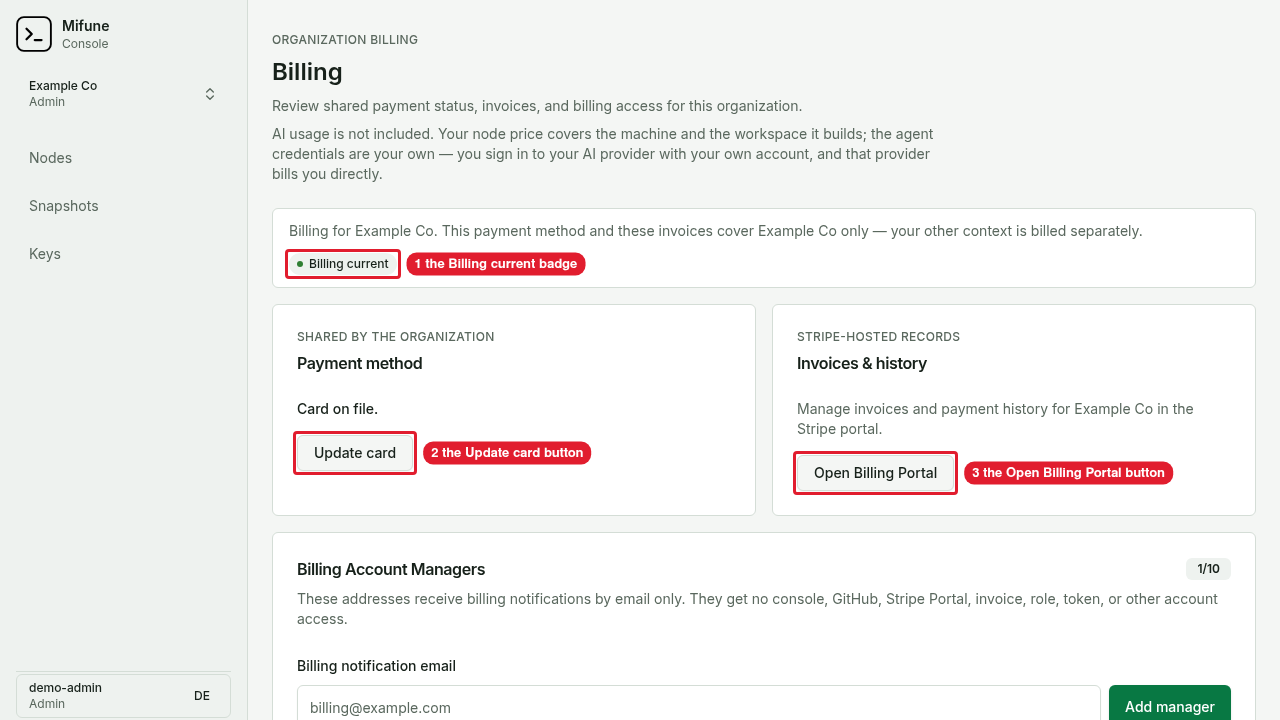 Callouts: 1 is the Billing current badge. 2 is the Update card button. 3 is the Open Billing Portal button.
The status badge at the top of the Billing page shows one of these values:
- Billing current: the context has no unpaid invoice.
- Payment attention needed: the context has an unpaid invoice.
Who can manage billing
You must have the admin role in the context to manage billing. In your personal space, you have the admin role.
An admin can do these actions:
- Add or update the card.
- Open the billing portal.
- Read the usage and spend of the context.
- Add a billing manager.
- Remove a billing manager.
A member with the viewer role or the operator role can open the Billing page. The page shows the billing status. The page does not show the billing buttons. The Payment method card shows "Ask an admin of" and the name of the context.
To manage billing, sign in to the Console in your browser. An API token cannot manage billing.
Add a card
A paid node needs a card on file. Before you create the first paid node of a context, add a card.
- On the Billing page, find the Payment method card.
- Select Add card. The checkout page of Stripe opens.
- Enter the card details and complete the checkout. The Console opens the Billing page again.
- Make sure that the Payment method card shows "Card on file."
If you try to create a paid node and the context has no card, the Console opens the checkout page.
Update the card
- On the Billing page, find the Payment method card.
- Select Update card. The billing portal opens.
- In the billing portal, change the card.
Open the billing portal
The billing portal is a page of Stripe. In the billing portal, you can change the card, read the invoices, and read the payment history of the context.
- On the Billing page, find the Invoices & history card.
- Select Open Billing Portal. The billing portal opens.
Read your usage and spend
The Usage & spend section shows the usage of the current context in the current UTC month. The usage that the section shows is the usage on your invoice. The Console counts whole running hours in UTC.
Only an admin sees this section.
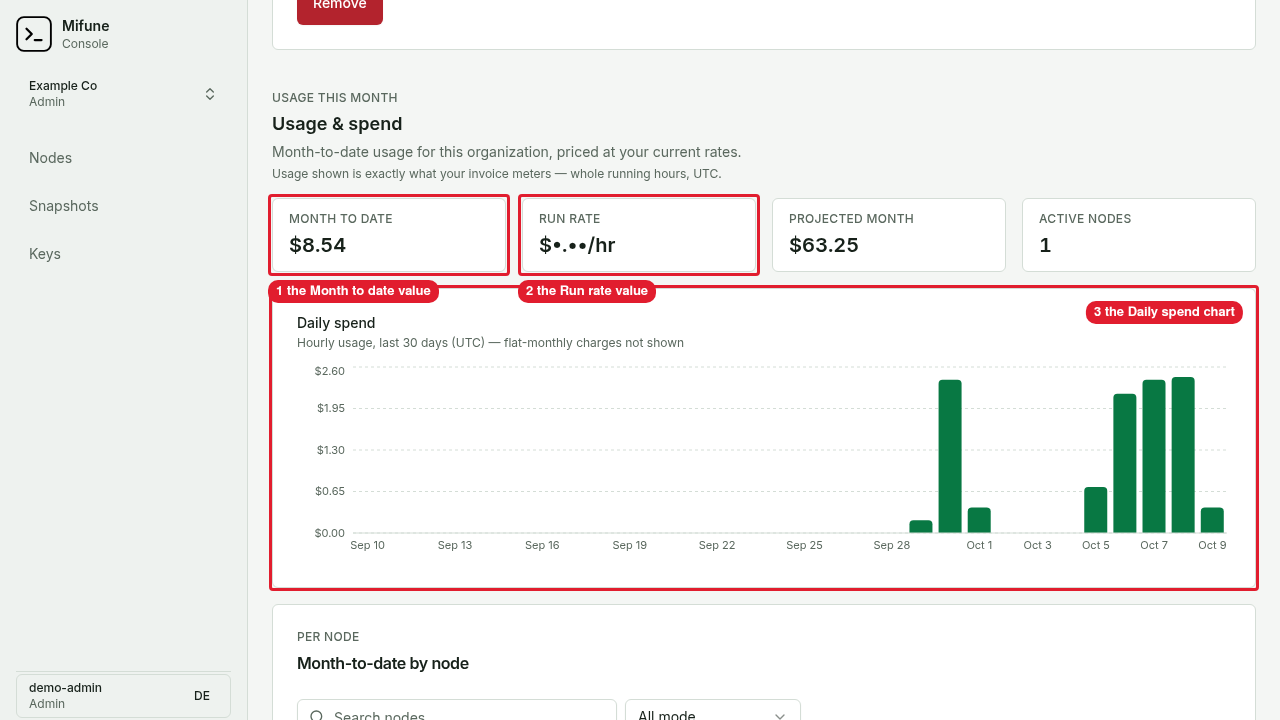 Callouts: 1 is the Month to date value. 2 is the Run rate value. 3 is the Daily spend chart.
The section shows these values:
| Value | Meaning |
|---|---|
| Month to date | The cost of the paid usage from the start of the UTC month to now. |
| Run rate | The cost per hour of the paid nodes with the status Running. |
| Projected month | The month-to-date cost plus the run rate for each hour to the end of the UTC month. |
| Active nodes | The number of paid nodes with the status Running. |
The section also shows these items:
- The Daily spend chart shows the hourly usage of each day in the last 30 days, in UTC.
- The Month-to-date by node table shows the Node, Spec, Mode, Hours, and Cost of each node.
Unpaid invoice
If a payment of an invoice fails, the context gets an unpaid invoice. The status badge shows Payment attention needed. The Payment method card shows a warning about the unpaid invoice.
While the invoice stays unpaid, the Console blocks these actions in the context:
- Create a paid node.
- Create a paid node from a snapshot.
- Continue a free node on paid usage.
To clear the block, an admin does these steps:
- On the Billing page, select Update card or Open Billing Portal. The billing portal opens.
- In the billing portal, update the card.
- In the billing portal, pay the unpaid invoice.
When Stripe reports the invoice as paid, the Console removes the block. The status badge shows Billing current.
Billing managers
A billing manager is an email address. The Console sends billing emails of the context to each verified billing manager. A billing manager gets no Console access, no billing portal access, no invoice access, and no role.
Only an admin sees the Billing Account Managers card. Each context can have up to 10 billing managers.
A verified billing manager gets an email for these events:
- A payment of an invoice fails.
- A payment of an invoice succeeds.
Add a billing manager
- On the Billing page, find the Billing Account Managers card.
- In Billing notification email, enter the email address.
- Select Add manager. The Console sends a verification email to the address.
- The owner of the address opens the link in the email.
- The owner of the address selects Verify billing notifications.
The card shows the verification status of each address:
| Status | Meaning |
|---|---|
| Pending | The Console sent the verification email. The address is not verified. |
| Verified | The address gets billing emails. |
| Expired | The verification link expired. |
| Send failed | The Console could not send the verification email. |
If the status is Pending, Expired, or Send failed, select Resend verification to send a new verification email.
Remove a billing manager
- On the Billing Account Managers card, find the address.
- Select Remove. A confirmation dialog opens.
- Select Remove manager. The address gets no more billing emails.