Free tier
The free tier gives you up to three free nodes in the Mifune Console. You do not need a credit card.
What the free tier includes
- Up to three nodes with the
n4spec. For the size of then4spec, read Nodes. - 24 running hours per UTC month. The free nodes share these hours.
- No credit card and no SSH key.
The Console counts the time in which each free node status is Running. A paused free node uses no free hours.
The free hours reset at 00:00 UTC on the first day of each month. Unused hours do not move to the next month.
Who can use the free tier
The free tier is available only for personal accounts, in your personal space. Only the owner of the personal space can create a free node. An organization cannot have a free node.
You can have up to three free nodes at a time. If you have three free nodes, destroy a free node before you create a new free node.
The Console limits the number of free-tier spots. If no free-tier spot is open, the Console shows the message "Free-tier enrollment is full."
To create a free node, follow Getting started.
Limits of a free node
- A free node always uses the
n4spec. - A free node cannot rebuild.
- You cannot create a snapshot of a free node. The Console keeps only the snapshot that Pause saves.
- On a free node, Destroy also deletes the snapshot of the node.
For more information about snapshots, read Snapshots.
Track your free hours
The Console shows the free hours in these locations:
-
The node page of the free node shows Free hours left and Free hours reset.
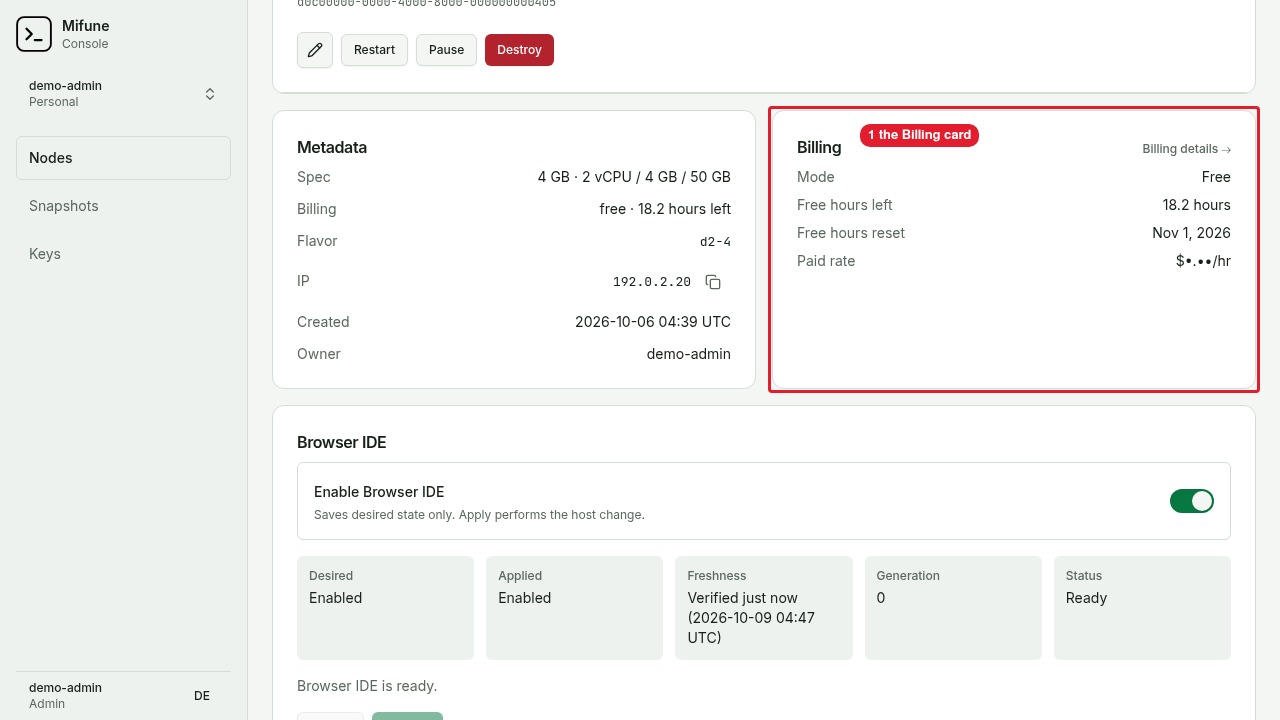 Callouts: 1 is the Billing card with Free hours left and Free hours reset.
 -
The Billing page shows the Free running hours card. The card shows Used this month, Left this month, and Resets.
-
The Nodes page shows the free hours left and the reset date.
When the free hours run out
When the free hours of the month run out, the Console pauses each running free node. Pause saves /home/sandbox in a snapshot. Pause does not keep running processes, the data in memory, or the data in Docker volumes. The node status changes to Paused.
The Nodes page shows a banner with the Continue on paid usage button. The node page shows the Free hours used for this month card. The card shows these rows:
- Free hours reset: the date on which the free hours return.
- Workspace expires: the date on which the Console deletes the workspace.
- Paid rate: the hourly rate of the node on paid usage.
You have two choices:
- Resume the node after the free hours reset:
- Wait until the free hours reset.
- Select Resume on the node page.
- Select Continue on paid usage. The node moves to hourly billing.
Workspace retention
A paused free node keeps its workspace for 60 days. The 60 days start when the node pauses. If you do not resume the node within 60 days, the Console deletes the workspace.
Two days before the workspace expires, the Billing page shows a notice with the expiry date. After the free hours run out, the Nodes page also shows the notice.
If the workspace expires before the free hours reset, you cannot keep the workspace on the free tier. To keep the workspace, select Continue on paid usage.
Continue on paid usage
Continue on paid usage moves a free node to hourly billing. These changes occur:
- The node uses hourly billing at the rate of the
n4spec. The node does not return to the free tier. - The workspace expiry no longer applies.
- The node stays paused. Billing starts when you resume the node.
After the change, the node is a paid node. The Console charges the node for each hour in which the node status is Running. For the billing rules of a paid node, read Nodes. For the price, read mifune.dev/pricing.
Who can continue on paid usage
You must have the operator role or a higher role. In your personal space, you have the admin role. If your role is lower, the card shows "Ask an operator to continue this node on paid usage."
The personal space must have a card on file. If the personal space has no card, the Console opens the checkout page to add a card. If the personal space has an unpaid invoice, the Console blocks the action. For the card and the unpaid invoice, read Billing.
Steps
-
Open the node page of the paused free node.
-
On the Free hours used for this month card, select Continue on paid usage. A confirmation dialog opens.
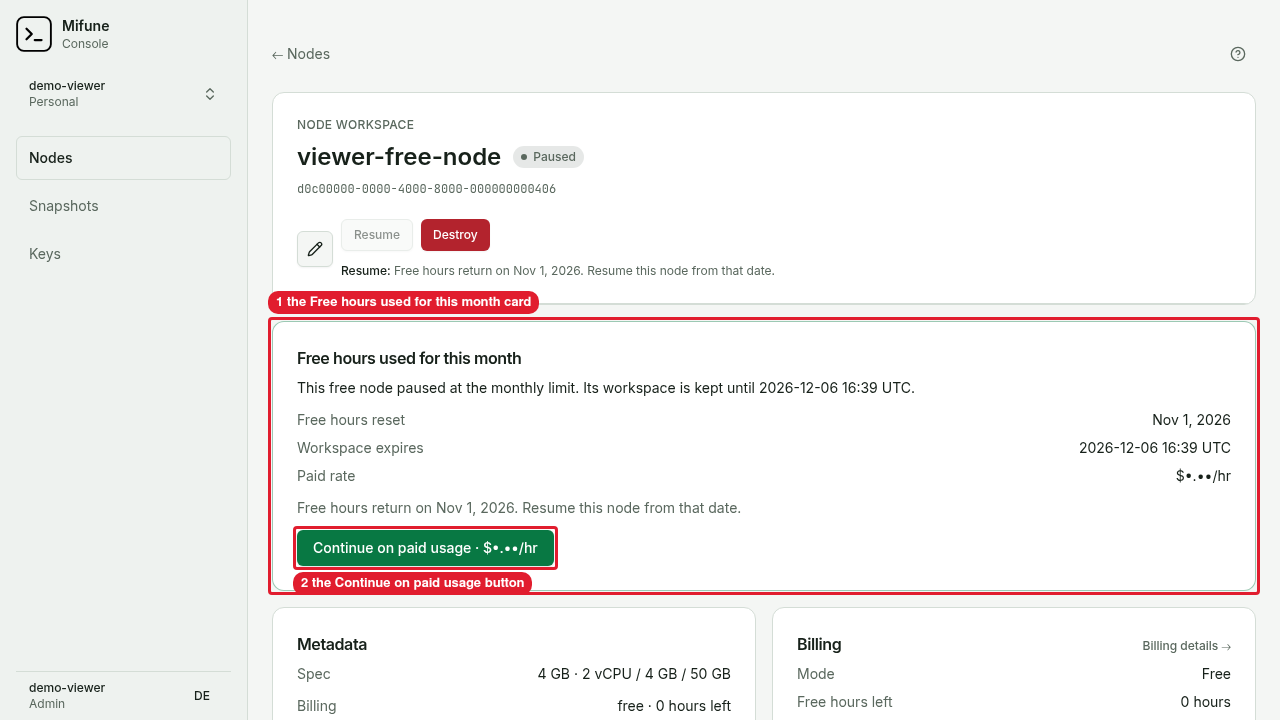 Callouts: 1 is the Free hours used for this month card. 2 is the Continue on paid usage button.
 -
Select Continue on paid usage. The Console shows a message that the node now runs on paid usage.
-
To start the node, select Resume, then select Resume node.