Organizations
An organization is a shared context in Mifune Console. An organization holds its own nodes, SSH keys, and billing. Each member of an organization has one role in that organization.
Your personal space is a different context. Only you can use your personal space. You cannot add members to your personal space. You cannot leave, rename, or delete your personal space. For the two kinds of context, read Getting started.
Roles
The Console has three roles: viewer, operator, and admin. A higher role can take each action of a lower role. The admin role is the highest role.
A role applies only in one organization. A role in one organization does not change your access to other organizations.
| Action | viewer | operator | admin |
|---|---|---|---|
| See the nodes, the node pages, and the snapshots | Yes | Yes | Yes |
| Create, rename, restart, pause, resume, and rebuild a node | No | Yes | Yes |
| Destroy a node | No | No | Yes |
| Create, replace, restore, rename, tag, and delete a snapshot | No | Yes | Yes |
| Create a node from a snapshot | No | Yes | Yes |
| See the SSH keys | Yes | Yes | Yes |
| Add an SSH key | No | Yes | Yes |
| Delete an SSH key | No | No | Yes |
| Create and revoke your own API tokens | No | Yes | Yes |
| See the Billing page | Yes | Yes | Yes |
| Manage the payment method and see the spend | No | No | Yes |
| See the members | Yes | Yes | Yes |
| Leave the organization | Yes | Yes | Yes |
| Invite, add, and remove members, and change roles | No | No | Yes |
| Rename and delete the organization | No | No | Yes |
For the node actions, read Nodes. For the snapshot actions, read Snapshots. For API tokens, read API tokens.
Create an organization
Each signed-in user can create an organization. Do these steps in the Console:
- Select the context switcher.
- Select + New organization.
- In Organization name, type a name. The name has 1 to 64 characters.
- Select Create organization.
You become the admin of the new organization. The Console switches to the new organization.
Open the Members page
The Members page shows the members of the current organization. The page is not available in your personal space.
-
In the context switcher, select the organization.
-
Open the user menu. The user menu shows your GitHub login.
-
Select Members.
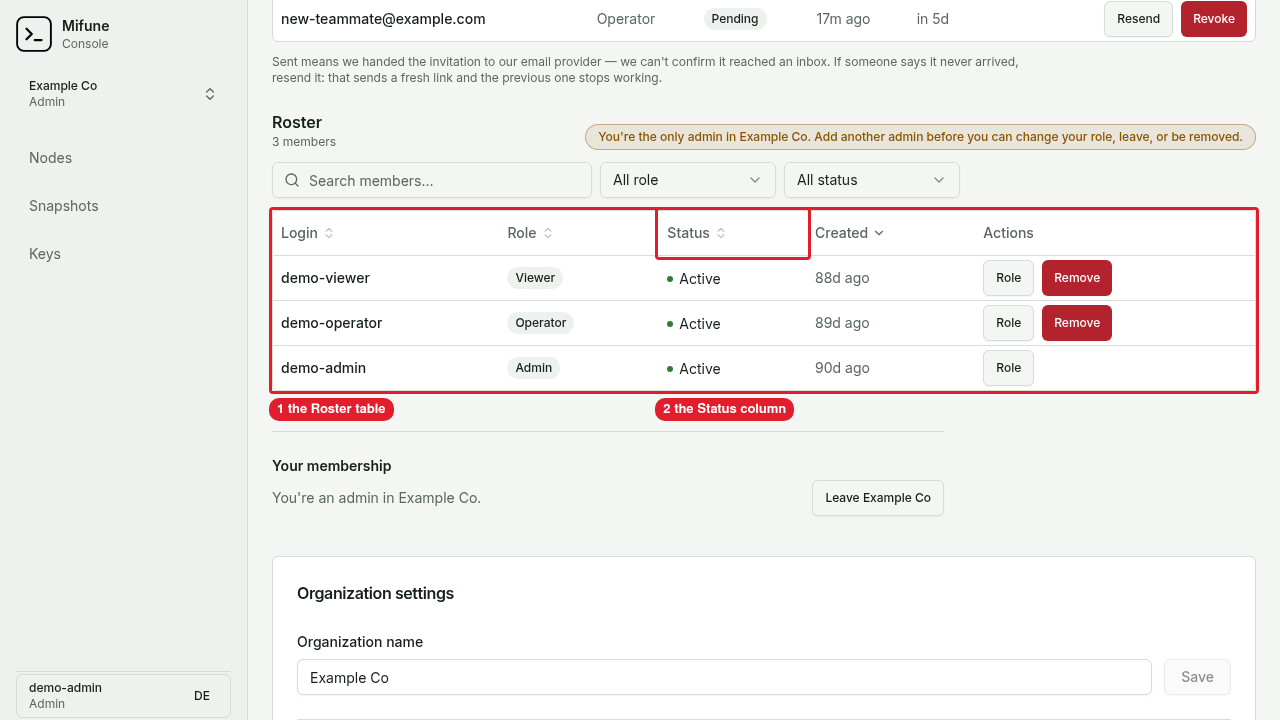 Callouts: 1 is the Roster table. 2 is the Status column.
The Roster table shows each member with the Login, Role, Status, and Created columns. A member who has not signed in yet shows the status Hasn't signed in yet.
Invite a member by email
You must have the admin role. An invitation sends a link to an email address. The person signs in with GitHub to accept the invitation.
-
On the Members page, find the Invite a member card.
-
Select Send an email invitation.
-
In Email address, type the email address. Examine the domain for typing errors.
-
In Role, select Viewer, Operator, or Admin. The default role is Viewer.
-
Optional: In Restrict to a GitHub username (optional), type a GitHub username. Then only that GitHub account can accept the invitation.
-
Select Invite to and the organization name.
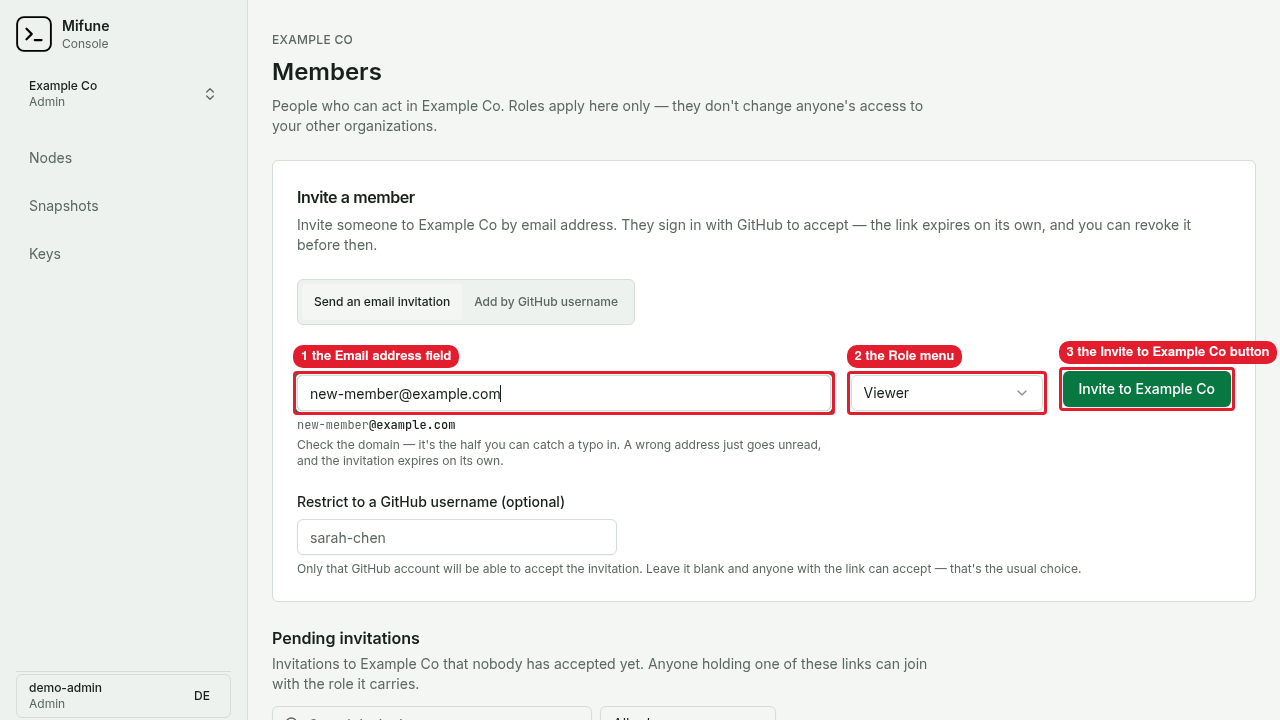 Callouts: 1 is the Email address field. 2 is the Role menu. 3 is the Invite to Example Co button.
 -
If you selected Admin, the Console shows a confirmation. Select Send admin invitation.
-
The Console shows the invitation link one time. Copy the link, then select Done.
Warning: If you do not restrict the invitation to a GitHub username, each person with the link can accept the invitation. Give the link only to the person that you invite.
The email can fail to arrive. If the email does not arrive, give the copied link to the person.
Add a member by GitHub username
You must have the admin role. This procedure adds the member immediately. The Console sends no email, and the access does not expire.
- On the Members page, select Add by GitHub username.
- In GitHub username, type the username.
- In Role, select a role.
- Select Add to and the organization name.
- In the confirmation, open the GitHub profile link. Make sure that the profile is the person that you want to add.
- Select Add member.
Manage pending invitations
You must have the admin role. The Pending invitations table shows each invitation with its Status and its Expires time. The statuses are Pending, Expired, Revoked, Accepted, and Declined.
- To send a new link, select Resend. The earlier link stops working. You can resend only a Pending invitation. After a resend, wait one minute before the next resend.
- To cancel an invitation, select Revoke, then select Revoke invitation. The link stops working immediately.
An expired invitation cannot be resent. Revoke the expired invitation, then invite the person again. A declined invitation also cannot be resent. Invite the person again to make a new offer.
Accept an invitation
Do these steps as the invited person:
- Open the invitation link from the email. Use the full link. A partial link loses the invitation code.
- Read the organization name, the role, and the expiry time.
- Select Continue with GitHub, and sign in with GitHub. Your GitHub email does not have to match the invitation email address.
- Select Accept.
The Console adds you to the organization with the role of the invitation. If the invitation has a restriction to a GitHub username, sign in with that GitHub account.
To refuse the invitation, select Decline, then select Decline invitation. The link stops working.
If the invitation expired, the Console shows a message. Ask the admin for a new invitation.
Change the role of a member
You must have the admin role.
- On the Members page, find the member in the Roster table.
- Select Role.
- Select the new role.
- Select Change role.
The member gets the new role on the next request. If you change your own role from admin, you cannot manage members or billing after the change.
An organization must have at least one admin. The Console refuses to change the role of the last admin.
Remove a member
You must have the admin role. Removal takes effect immediately. The member loses access to the nodes, the SSH keys, and the billing of the organization. The API tokens of that member for the organization stop working. The nodes that the member created continue to run.
- On the Members page, find the member in the Roster table.
- Select Remove.
- Select Remove from and the organization name.
You cannot remove yourself with Remove. To remove yourself, leave the organization.
Leave an organization
Each member can leave an organization. Before you leave, read the result: you lose access to the nodes, the SSH keys, and the billing of the organization immediately. Your API tokens for the organization stop working. An admin can add you again.
- On the Members page, find the Your membership section.
- Select Leave and the organization name.
- In the confirmation, select Leave and the organization name.
The Console refuses the leave in these conditions:
- If you are the only
admin, give theadminrole to a different member first. Then leave. - If you are the only member, delete the organization instead.
Rename an organization
You must have the admin role.
- On the Members page, find the Organization settings card.
- In Organization name, type the new name.
- Select Save.
Delete an organization
Warning: You cannot undo the deletion of an organization. The deletion releases the organization name.
You must have the admin role. You can delete only an empty organization. Before you delete the organization, remove these items:
- each node
- each SSH key
- each API token
- the payment method
- each other member
If the organization has billing history, you cannot delete the organization.
- On the Members page, find the Organization settings card.
- Select Delete and the organization name.
- Select Delete organization.
If the organization is not empty, the Console deletes nothing. The Console shows the item that you must remove first.