Nodes
A node is one AGRO workspace on its own virtual machine (VM). The Mifune Console creates, starts, stops, and deletes each node for you.
Warning: A node is not a sandbox for untrusted code. Each node is a dedicated VM that Mifune operates. A port that a container publishes is open to the internet. No firewall rule closes the port by default. The SSH user has
sudo. Do not use a node to run untrusted code.
The Nodes page lists the nodes of your current context. Select a node name to open the node page.
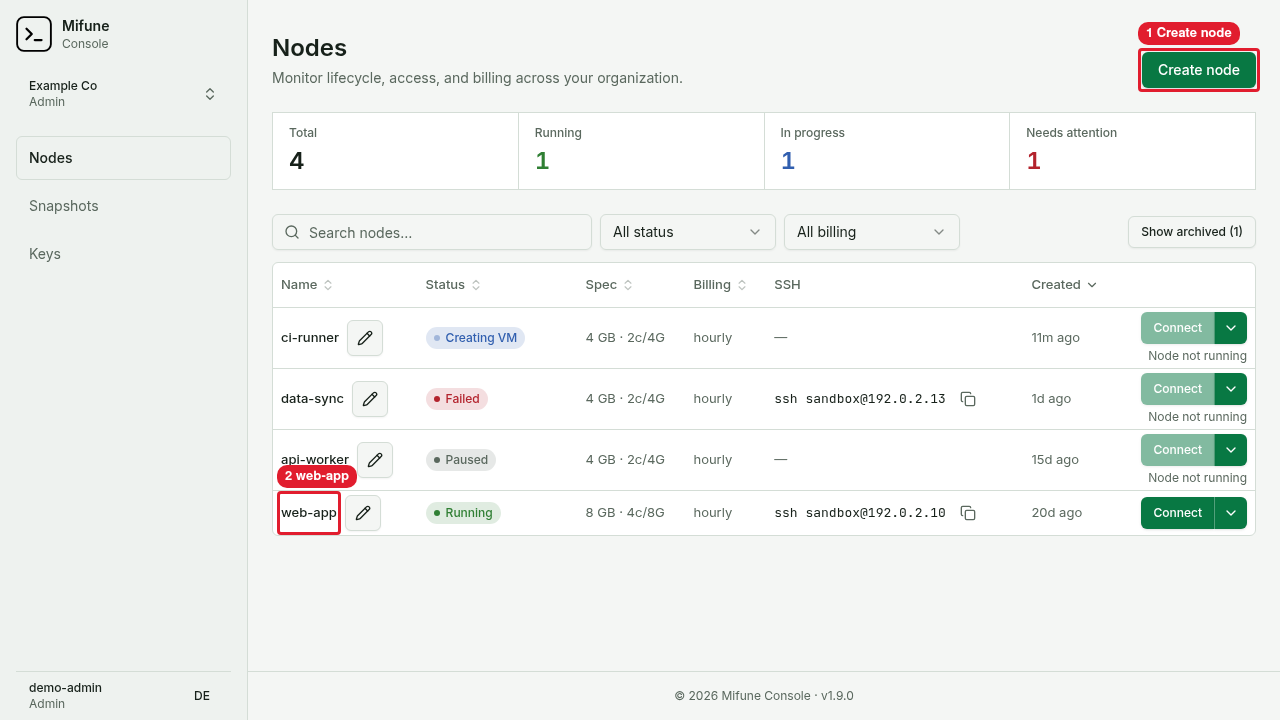 Callouts: 1 is the Create node button. 2 is the web-app node name.
The node page shows the node actions.
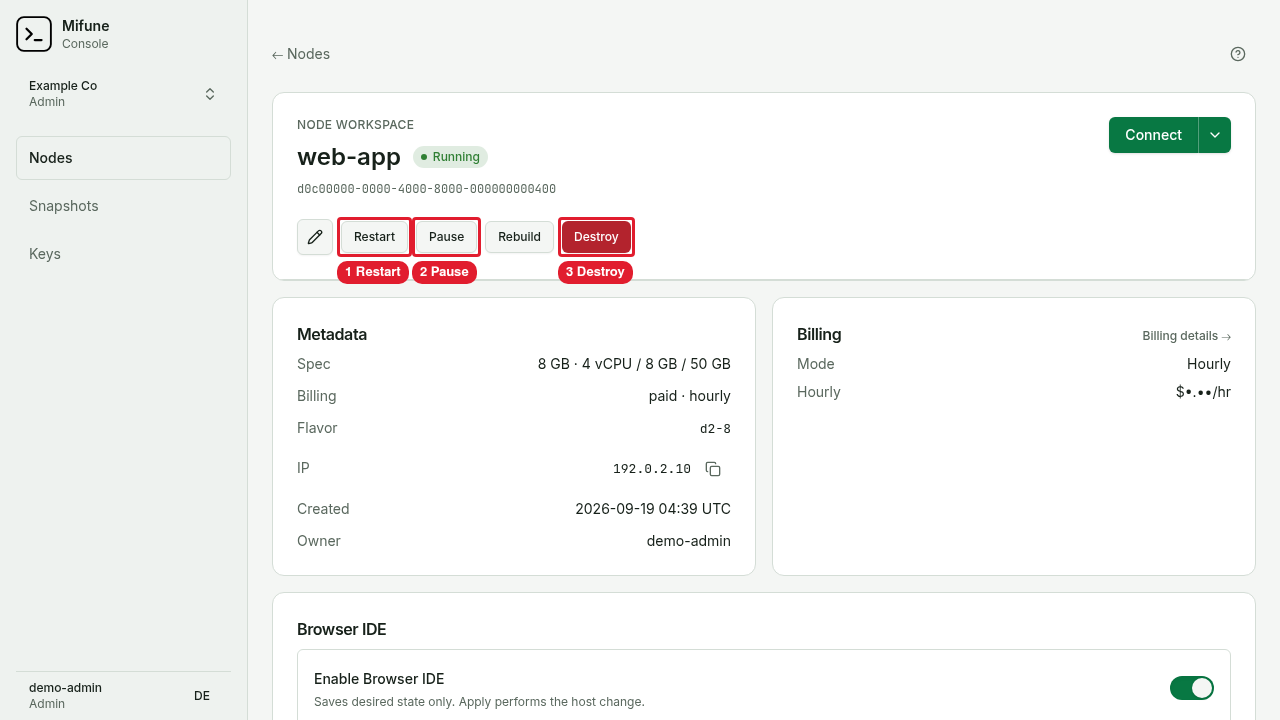 Callouts: 1 is the Restart button. 2 is the Pause button. 3 is the Destroy button.
Roles for each action
Your role in the current context sets the actions that you can take. The roles are viewer, operator, and admin. A higher role can take each action of a lower role. The admin role is the highest role.
| Action | Minimum role |
|---|---|
| View the node list and the node page | viewer |
| Create | operator |
| Rename | operator |
| Restart | operator |
| Pause | operator |
| Resume | operator |
| Rebuild | operator |
| Destroy | admin |
A viewer sees no action buttons. An operator sees Destroy, but the button stays disabled.
Node specs
Each node has one spec. The spec sets the vCPU count, the RAM, and the disk size.
| Spec | Label | vCPU | RAM | Disk |
|---|---|---|---|---|
n4 | 4 GB | 2 | 4 GB | 50 GB |
n8 | 8 GB | 4 | 8 GB | 50 GB |
n16 | 16 GB | 4 | 16 GB | 100 GB |
n32 | 32 GB | 8 | 32 GB | 200 GB |
n64 | 64 GB | 8 | 64 GB | 200 GB |
A free node uses the n4 spec. For the price of each spec, read mifune.dev/pricing.
Billing
The Console charges a paid node by the hour. The Console charges only for the hours in which the node status is Running. A paused node and a destroyed node get no charge.
Create
- On the Nodes page, select Create node.
- Optional: type a Name. If you leave the name blank, the Console shows the node ID.
- Optional: open Advanced: direct SSH access (optional) and select one or more SSH keys. A node without a key accepts no SSH connection. You can always connect in the browser.
- If the Billing choice shows, select Free or Paid hourly.
- For a paid node, select a spec. A free node always uses the
n4spec. - Select Create free node or Create 1 node.
The node status goes from Queued to Running. The Console adds the selected SSH keys when it creates the node. A later change to the SSH keys of your context does not change the node.
Rename
- Next to the node name, select the Edit name button.
- In Display name, type the new name. The name has a limit of 120 characters.
- Select Save name.
Restart
Restart reboots the VM of the node. The node keeps its IPv4 address. The workspace stays on the disk. Each running process stops. The Restart loses the data in memory.
Restart needs the node status Running. To restart the node, select Restart, then select Restart node.
Pause
Pause stops the billing of a node. Pause saves /home/sandbox in a snapshot, then deletes the VM. Your repositories are in /home/sandbox. The new snapshot replaces the earlier snapshot of the node. Pause does not keep running processes, the data in memory, or the data in Docker volumes.
Pause needs the node status Running. Pause is available on a free node and on a paid hourly node. To pause the node, select Pause, then select Pause node.
Resume
Resume starts a paused node on a new VM. Resume restores /home/sandbox from the snapshot. You must start your services again. The node gets a new IPv4 address. If no prepared VM is ready, Resume takes more time.
Resume needs the node status Paused. To resume the node, select Resume, then select Resume node.
Rebuild
Rebuild moves the node to a new VM with a fresh operating system. Rebuild changes the IPv4 address of the node.
The Console takes a snapshot when the Rebuild starts. The new VM gets the files from that snapshot. Open editor sessions and running processes stop. The Rebuild loses each change that you make after the Rebuild starts.
Rebuild needs the node status Running and hourly billing. A free node cannot rebuild. To rebuild the node, select Rebuild, then select Rebuild node.
Destroy
Warning: Destroy deletes the VM and the workspace on the VM permanently. You cannot undo a Destroy. On a free node, Destroy also deletes the snapshot of the node.
Destroy stops the billing of a node. On a paid node, the Console keeps the latest snapshot of the node, if the node has one. You can create a new node from that snapshot, or delete the snapshot later.
You must have the admin role. To destroy the node, select Destroy, then select Destroy node.
Destroy is the recovery action for a node with the status Failed.
Node statuses
The node list and the node page show the status of each node.
| Status | Meaning |
|---|---|
| Queued | The Console accepted the node and waits to create the node. |
| Creating VM | The Console creates the VM. A Restart also shows this status. |
| Waiting for IP | The VM waits for its IPv4 address. |
| Waiting for boot | The VM starts its operating system. |
| Bootstrapping | The VM runs the node setup. |
| Starting container | The VM starts the AGRO container. |
| Running | The node is ready. You can connect to the node. |
| Pausing | The Console saves the snapshot and deletes the VM. |
| Paused | The node has no VM. /home/sandbox stays in a snapshot. You cannot connect to the node. |
| Resuming | The Console starts the node on a new VM. |
| Rebuilding | The Console moves the node to a new VM. |
| Restoring snapshot | The Console restores the node from a snapshot. |
| Destroy requested | The Console accepted the Destroy. |
| Destroying | The Console deletes the VM. |
| Destroyed | The Console deleted the VM. |
| Failed | An operation failed. Destroy the node to recover. |
While a status is in progress, the node page updates the status and the available actions.
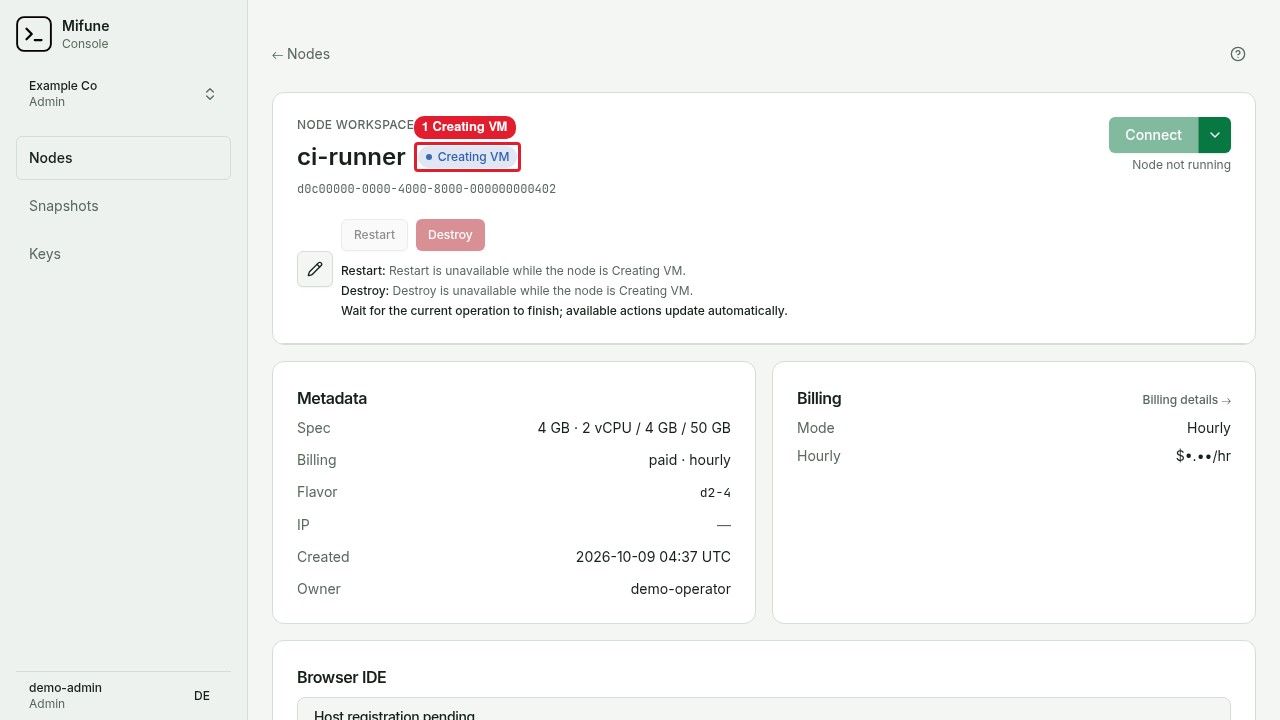 Callouts: 1 is the Creating VM status.