Snapshots
A snapshot is a saved copy of the workspace of a node. Use a snapshot to go back to an earlier state, or to start a new node with the same files. Mifune Console shows snapshots in two locations:
- The Snapshot card on the page of each node.
- The Snapshots page. This page lists each snapshot in your organization, including the snapshots of destroyed nodes.
For an introduction to the Console, read the introduction.
Roles
| Action | Role you need |
|---|---|
| See snapshots | viewer |
| Create, replace, restore, or delete a snapshot | operator |
| Rename a snapshot or edit its tags | operator |
| Create a node from a snapshot | operator |
If you have the viewer role, the Console shows snapshots but no snapshot actions.
One snapshot for each node
A node keeps one snapshot. A new snapshot of a node replaces the current snapshot of that node. After the new snapshot is ready, the Console deletes the earlier snapshot.
Each snapshot shows these fields:
- Name: The name that you give. If you give no name, the Console shows the node name, the kind, and the date.
- Tags: Labels that you use to find snapshots. A snapshot has at most 10 tags. A tag uses lowercase letters, digits, and hyphens.
- Created: The creation time of the snapshot.
- Kind: The origin of the snapshot. The kinds are
Baseline,Manual,Pause, andRebuild. A snapshot that you create is aManualsnapshot.
A name has at most 80 characters.
Create a snapshot
Before you start, make sure that the node is running. You cannot create a snapshot of a free node.
- Open the node page.
- In the Snapshot card, select Create snapshot.
- Optional: Type a name in Name (optional).
- Optional: Add tags.
- Select Create snapshot.
The card shows Creating snapshot until the snapshot is ready.
Replace a snapshot
When the node already has a snapshot, the card shows Replace snapshot instead of Create snapshot. Before you start, make sure that the node is running.
Warning: After the new snapshot is ready, Replace deletes the current snapshot. You cannot get the current snapshot back.
-
Open the node page.
-
In the Snapshot card, select Replace snapshot.
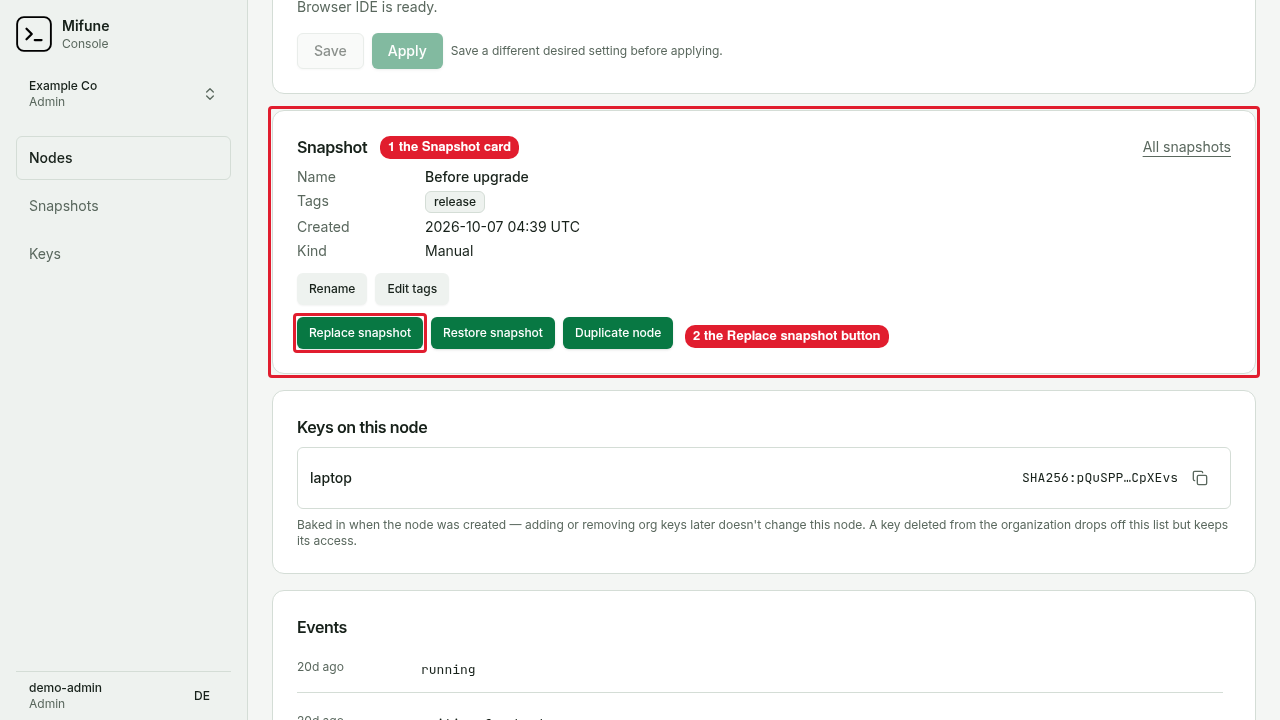 Callouts: 1 is the Snapshot card. 2 is the Replace snapshot button.
 -
Optional: Type a name and add tags for the new snapshot.
-
Select Replace snapshot.
The current snapshot stays available until the new snapshot is ready. If the new snapshot fails, the current snapshot does not change.
Restore a snapshot
Restore rebuilds the node from its snapshot. Before you start, make sure that the node is running or failed.
Warning: Restore overwrites the workspace of the node. Restore removes each change that you made after the time of the snapshot. Before you restore, copy each file that you want to keep out of the node.
- Open the node page.
- In the Snapshot card, select Restore snapshot.
- Read the time of the snapshot in the dialog.
- Select Restore snapshot.
The node status shows Restoring snapshot until the restore is complete. The node keeps the same IP address.
Archive snapshots restore only to a new node
An archive snapshot restores only to a new node. You cannot restore an archive snapshot in place.
The Console does not show the format of a snapshot. Use the kind to identify an archive snapshot:
- A
Pausesnapshot is always an archive snapshot. - A
Rebuildsnapshot is always an archive snapshot. - A
Manualsnapshot can be an archive snapshot.
If you select Restore snapshot for an archive snapshot, the Console shows this message: "Restore in place works only for an image snapshot. Create a new node from this snapshot." To use the files, create a node from the snapshot.
Create a node from a snapshot
A new node from a snapshot starts with the full workspace of the snapshot. The source node does not change.
- Find the snapshot. Use one of these steps:
-
On the Snapshots page, select Create node in the row of the snapshot.
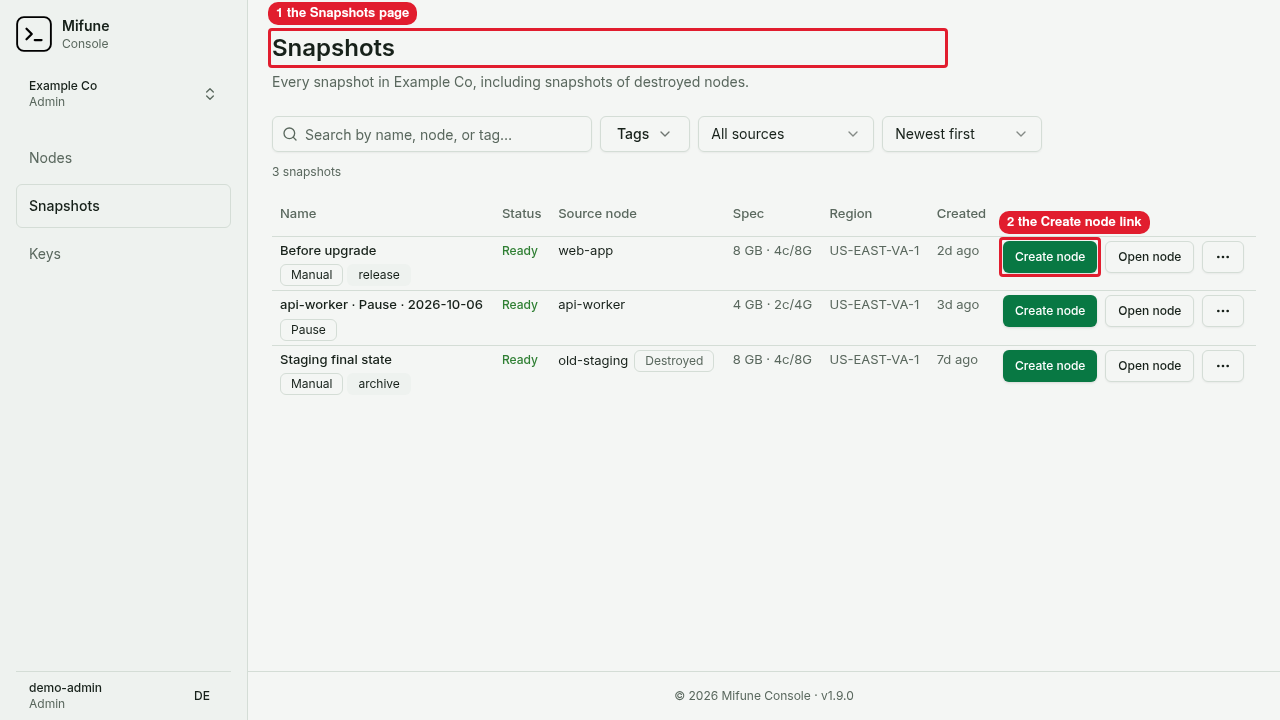 Callouts: 1 is the Snapshots page. 2 is the Create node link.
 -
On the page of a running node, select Duplicate node in the Snapshot card.
-
On the page of a destroyed node, select Create node from snapshot in the Snapshot card.
-
- Select a size. The Console shows only the sizes with at least as much disk as the source node.
- Optional: Select the SSH keys for the new node.
- Select Create node.
The new node gets these properties:
- The node copies the whole workspace, including each login and each credential in the workspace.
- Only the SSH keys that you select can sign in over SSH. You can always connect in the browser.
- The node gets a new IP address. Read the address on the node page before you connect.
Delete a snapshot
You can delete only the snapshot of a destroyed node. When you destroy a node, the Console keeps the latest snapshot of that node.
Warning: Delete removes the snapshot permanently. After you delete the snapshot, you cannot create a node from the snapshot. You cannot undo the deletion.
To delete a snapshot from the node page:
- Open the page of the destroyed node.
- In the Snapshot card, select Delete snapshot.
- Select Delete snapshot.
To delete a snapshot from the Snapshots page:
- Find the row of the snapshot. The source node shows the Destroyed label.
- Open the actions menu of the row.
- Select Delete.
- Select Delete snapshot.
If the Console is creating a new node from the snapshot, you cannot delete the snapshot. Try again after the new node is running.
Find a snapshot
On the Snapshots page, use these controls:
- The search field: Type a name, a node, or a tag.
- Tags: Show only the snapshots with each tag that you select.
- The source filter: Select All sources, Live nodes, or Destroyed nodes.
- The sort control: Select Newest first, Oldest first, Name, or Node.
To change the name or the tags of a snapshot, select Rename or Edit tags. These actions are on the Snapshot card and in the actions menu of each row.