Getting started
This guide takes you from sign-in to a running free node. You need a GitHub account. You do not need a credit card or an SSH key.
Sign in with GitHub
-
Open console.mifune.dev in your browser. The Sign in page opens.
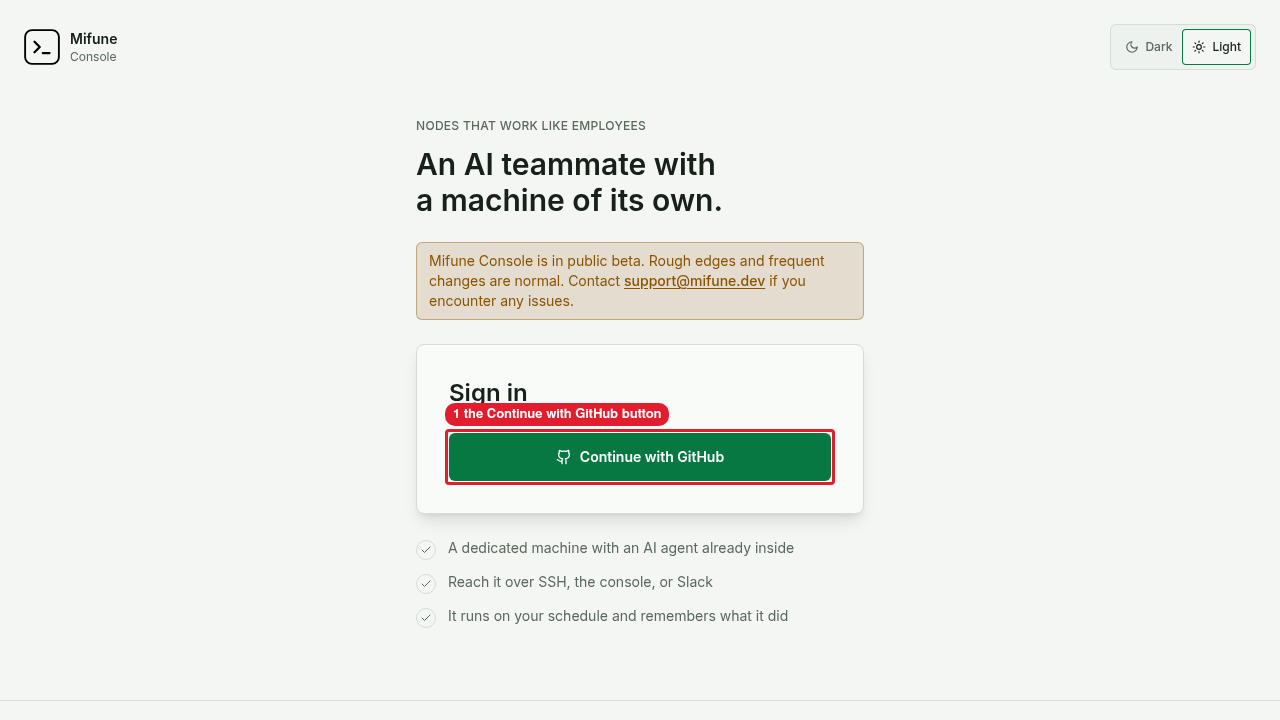 Callouts: 1 is the Continue with GitHub button.
 -
Select Continue with GitHub.
-
On GitHub, approve the sign-in. The Console opens the Nodes page.
Select a context
A context holds nodes, SSH keys, and billing. The Console gives you two kinds of context:
- Personal: your personal space. The Console creates this space for your account. Only you can use it. You cannot leave it, and you cannot add members to it.
- Organizations: a shared space. Each member of an organization has a role: Viewer, Operator, or Admin.
The context switcher in the navigation shows the name of the current context. To change the context, do these steps:
-
Select the context switcher. The menu shows the Personal group and the Organizations group.
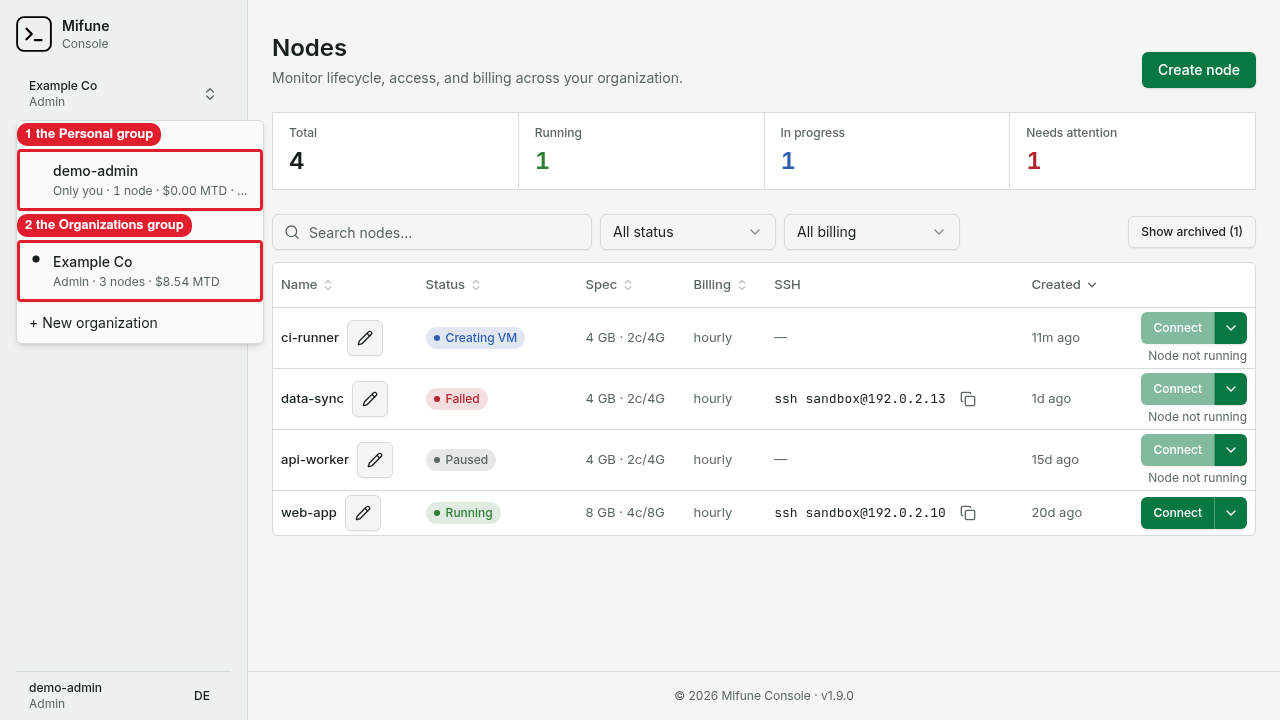 Callouts: 1 is the Personal group. 2 is the Organizations group.
 -
Select a context. The Console shows the nodes of that context.
To create an organization, do these steps:
- Select the context switcher.
- Select + New organization.
- In Organization name, enter a name.
- Select Create organization. You become the Admin of the new organization, and the Console switches to it.
Create your first free node
The free node is available only in your personal space. A free node always uses the n4 size. You can have up to three free nodes at a time. The free nodes share 24 running hours each UTC month.
-
In the context switcher, select your personal space.
-
On the Nodes page, select Create free node. If the page does not show this button, select Create node. The Create your free node page opens.
-
Under Billing, select Free.
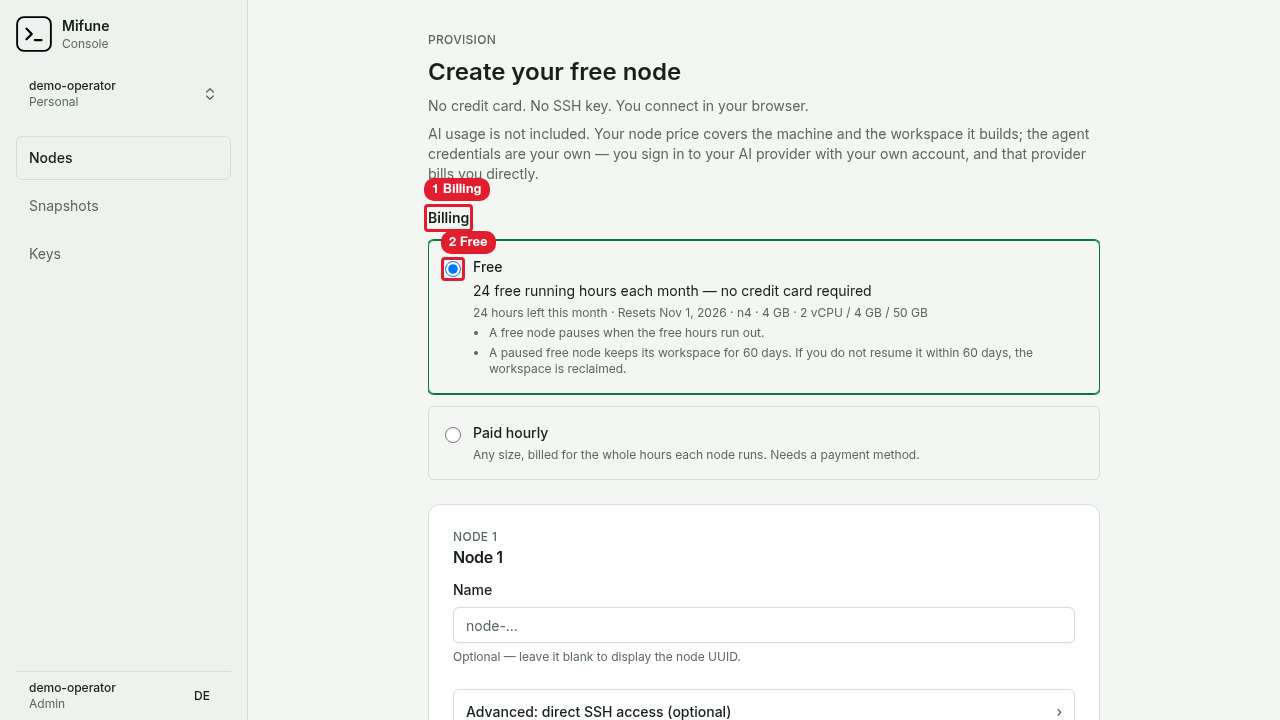 Callouts: 1 is Billing. 2 is the Free option.
 -
Optional: in Name, enter a name for the node. If you leave the name blank, the Console shows the node UUID.
-
Optional: open Advanced: direct SSH access (optional) and add an SSH key. A free node does not need an SSH key, because you connect in your browser.
-
Select Create free node. The Console opens the page of the new node.
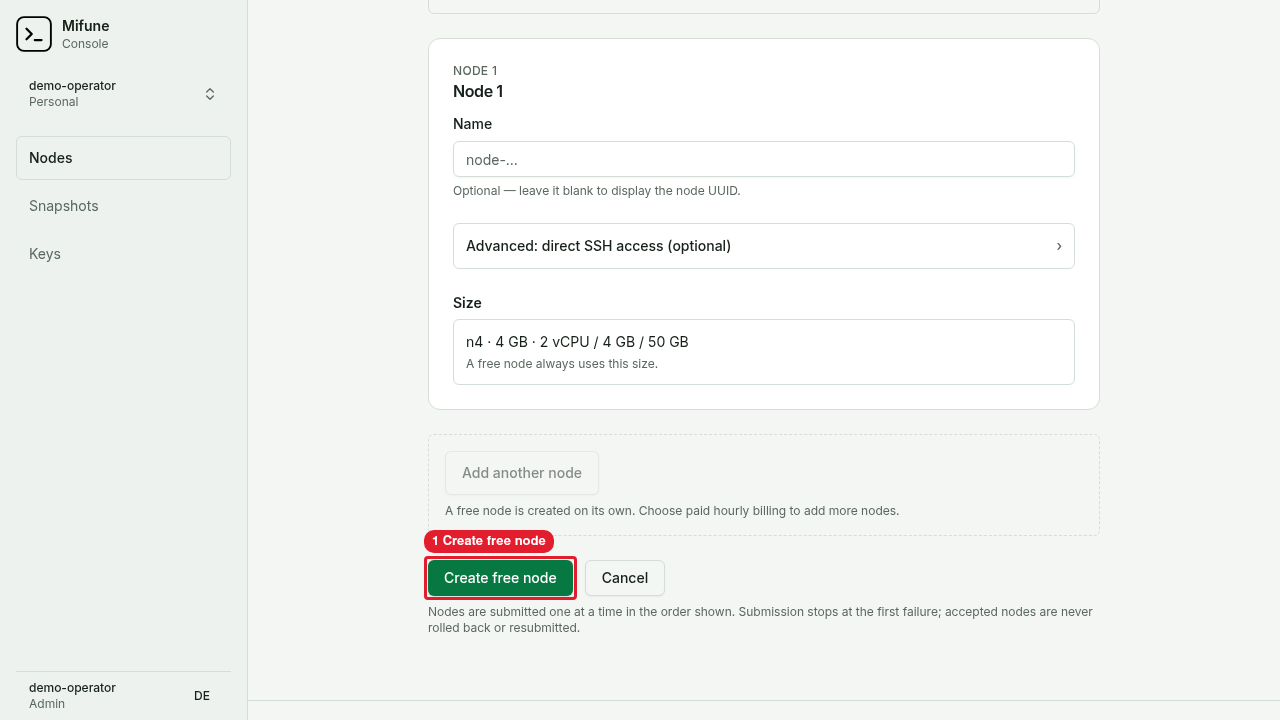 Callouts: 1 is the Create free node button.
 -
Wait until the node status is Running. The status first shows the setup steps, for example Creating VM and Bootstrapping.
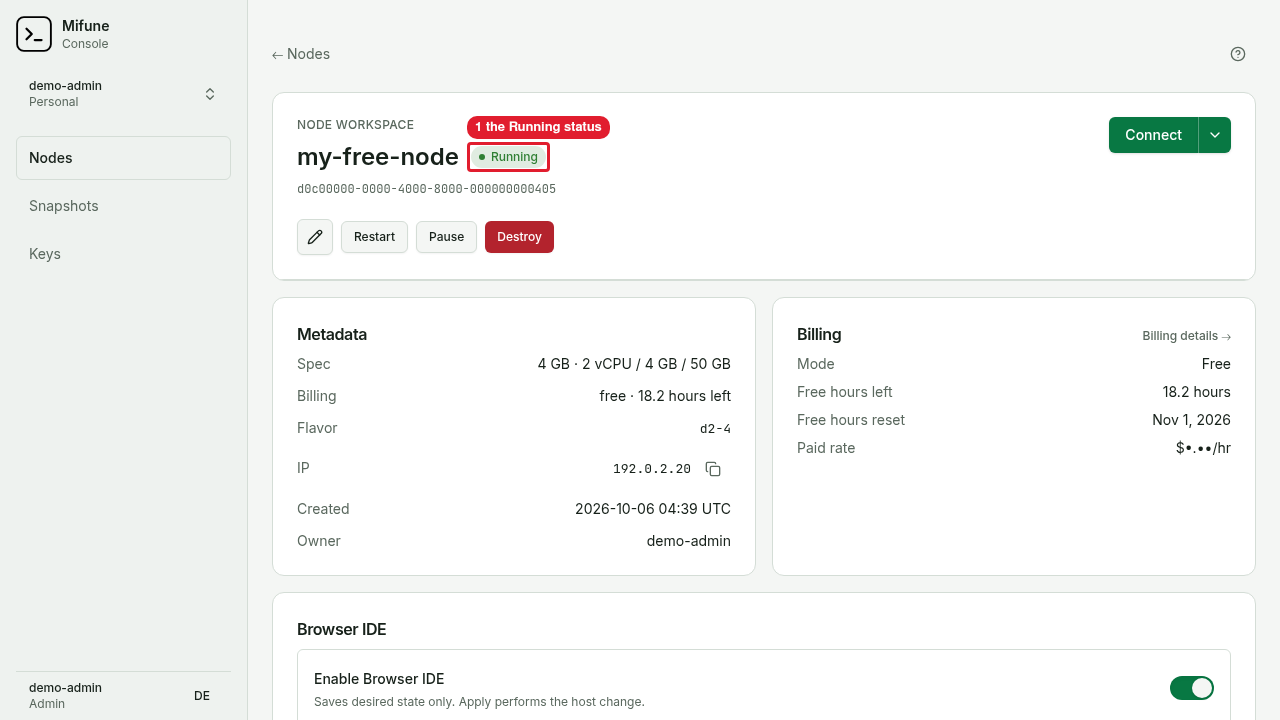 Callouts: 1 is the Running status.
A free node pauses when the free hours of the month run out. For the free-tier limits, read Free tier.
After you connect
Do these steps one time, on each new node. The node page also shows these steps. To open the walkthrough, select Access options next to Connect. Then select SSH. The SSH dialog shows the After you connect walkthrough.
Run each command in a terminal on the node host. Use the terminal of the browser editor or an SSH session.
-
On the node page, select Connect. The browser editor opens.
-
Open a terminal in the browser editor.
-
Connect GitHub, so that your agent can clone and push. Run the command below. Follow the prompts that
ghshows.gh auth login && gh auth setup-git -
Install an agent on the host. For example, to install Claude Code, run the command below:
agro harness install claude-code --hostFor a different agent, run
agro harness install <id> --host. Replace<id>with the agent ID, for examplecodex. Docker andghare already on the host. -
Start the agent. For Claude Code, run the command below:
claude -
Complete the login of the agent. The login stays in your home directory after a restart.
-
Next time, select Connect to open the browser editor on the AGRO workspace. The workspace folder is:
/home/sandbox/.agro/workspaces/harness -
To start a project, tell your agent to clone a repository into a worktree. Then add the worktree folder to your editor.
AI usage is not included in the node price. Each agent uses your own account with your AI provider, and that provider bills you directly.