Connect to a node
You can open a node in four ways. Each way starts from the Connect control on the node page.
| Menu item | What it opens | SSH key |
|---|---|---|
| Browser editor (code-server) | An editor in your browser | Not necessary |
| Browser terminal (Ghostty) | A terminal in your browser | Not necessary |
| SSH | A shell from the terminal on your computer | Necessary |
| Remote desktop (RDP) | A desktop over Tailscale. This item is experimental. | Not necessary |
The introduction tells you what the Console is.
Open the Connect menu
- Open the node page.
- Make sure that the node is running. The browser editor and the browser terminal open only on a running node.
- To open the default way, click Connect.
- To select a different way, click the arrow next to Connect. The menu shows the four items.
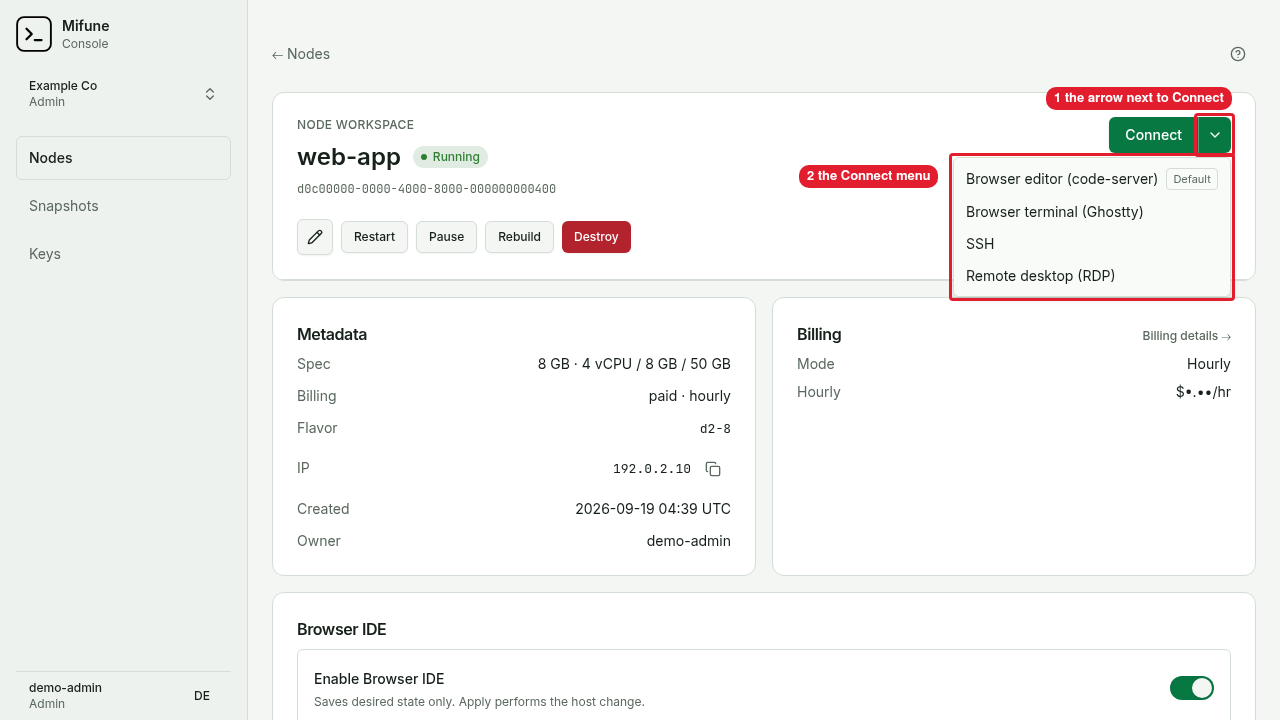 Callouts: 1 is the arrow next to Connect. 2 is the Connect menu.
The default is Browser editor (code-server). If the browser editor is not available, Connect opens the browser terminal.
If Connect is not available, the Console shows the cause below the button.
Browser editor
The browser editor opens code-server in a new browser tab. You do not need an SSH key.
If code-server does not run on the node, the menu item is not available. To turn on code-server, use the runtime settings of the node. You can also install code-server from a shell on the node:
agro tool install code-server --host
Browser terminal
The browser terminal opens a Ghostty terminal in a new browser tab. You do not need an SSH key.
Remote desktop
The remote desktop is experimental. It runs over Tailscale. Port 3389 opens only over Tailscale. The public address of the node does not expose port 3389.
You need a Tailscale tailnet and an RDP client.
-
Open a shell on the node. Use the terminal in the browser editor, or use SSH.
-
Install the desktop and Tailscale on the host:
cd ~/.agro/workspaces/harness && agro tool install desktop --host -
Add the node to your tailnet:
sudo tailscale up -
Set a password for the
sandboxuser:sudo passwd sandbox -
In your RDP client, connect to the Tailscale IP of the node on port 3389. Sign in as
sandbox.<tailscale-ip>:3389
SSH
The SSH key is optional. You can always use the browser editor and the browser terminal without a key.
A node with no SSH key accepts no SSH connection. The node does not accept a password for SSH.
The Console adds your SSH keys to a node only when you create the node. A key that you add later does not change an existing node. To use SSH on a node, add the key before you create the node.
Get a key
Open Keys in the Console, then click Add SSH key. The dialog has two tabs.
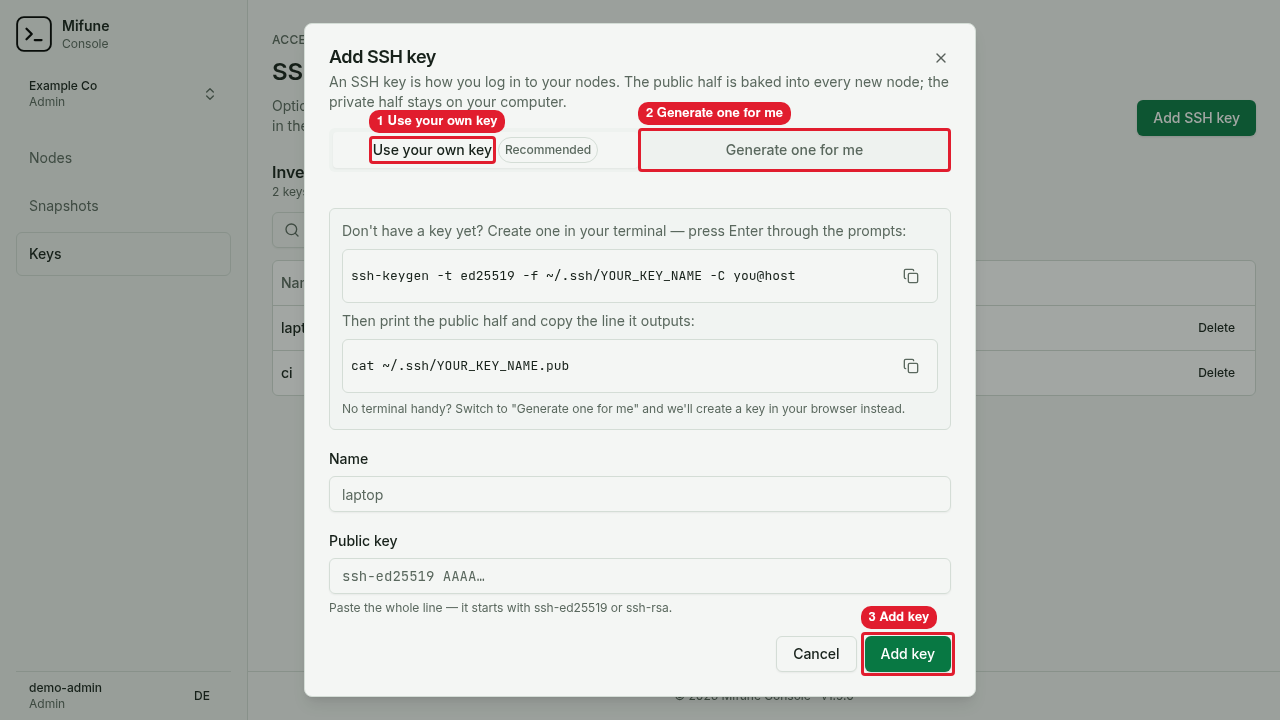 Callouts: 1 is the Use your own key tab. 2 is the Generate one for me tab. 3 is the Add key button.
To use your own key, select Use your own key:
-
On your computer, create a key. Press Enter at each prompt:
ssh-keygen -t ed25519 -f ~/.ssh/YOUR_KEY_NAME -C you@host -
Print the public key:
cat ~/.ssh/YOUR_KEY_NAME.pub -
Copy the full line. The line starts with
ssh-ed25519orssh-rsa. -
In Name, type a name for the key.
-
In Public key, paste the line.
-
Click Add key.
To let the Console create a key, select Generate one for me:
-
In Name, type a name for the key.
-
Click Generate key. Your browser creates an Ed25519 key. The Console receives only the public key.
-
Click Download private key. The Console keeps no copy of the private key. The Console does not show the key again.
-
Move the file into your SSH folder:
mv ~/Downloads/agro-<key-name>.key ~/.ssh/ -
Set the permissions of the file:
chmod 600 ~/.ssh/agro-<key-name>.key -
Click Done.
On Windows, keep the key file in a private folder and skip the chmod command. Use the same ssh command in PowerShell.
Add the key to a node
When you create a node, open Advanced: direct SSH access (optional) and select your key. The node page shows the keys of a node in Keys on this node.
Connect with SSH
-
Open the node page.
-
Click the arrow next to Connect.
-
Click SSH.
-
Copy the SSH command from the dialog. The command has this shape:
ssh -i ~/.ssh/<your-key-file> <user>@<node-ip>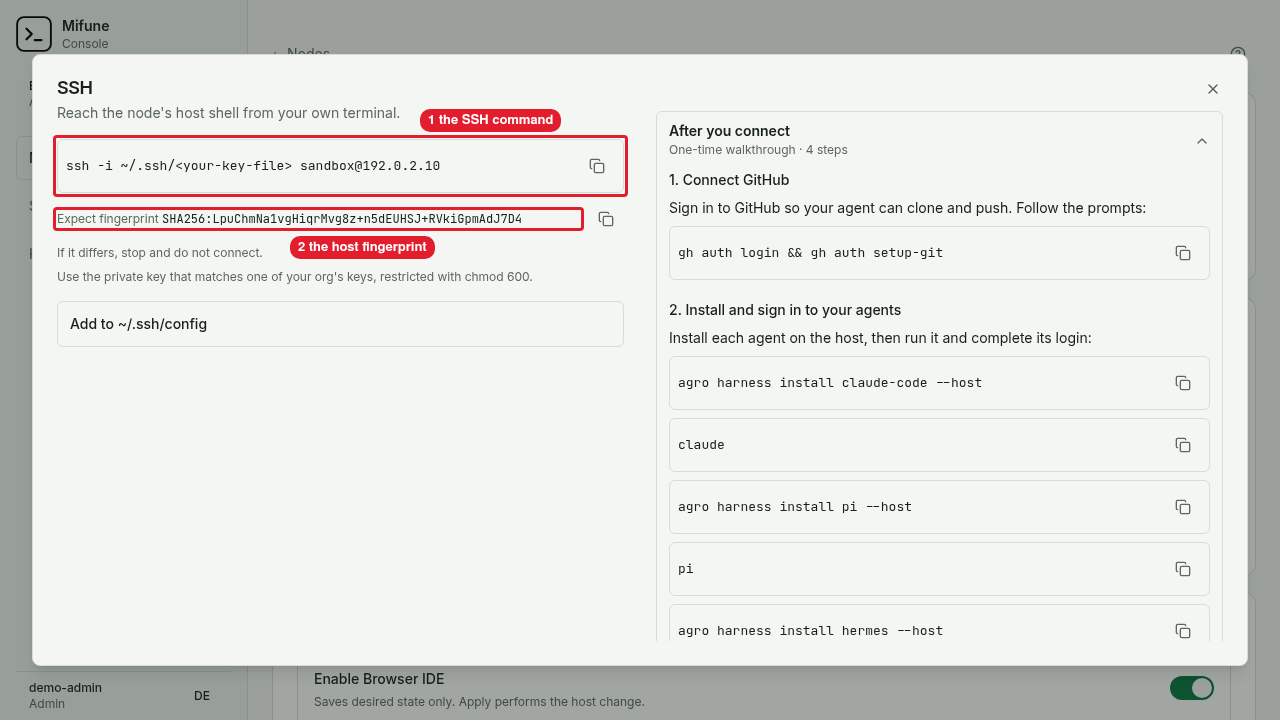 Callouts: 1 is the SSH command. 2 is the host fingerprint.
 -
Replace
<your-key-file>with your private key file. Make sure that the file has the permissions600. -
Run the command in the terminal on your computer.
-
Compare the host fingerprint with the fingerprint in the dialog. If the two fingerprints are different, stop and do not connect.
If the node has no IP address yet, the dialog shows no command. When the node gets an address, the dialog shows the command.
To use a short host name, open Add to ~/.ssh/config in the dialog. Copy the entry into your ~/.ssh/config file.